What Is the Google Chromecast Untrusted Device Error?
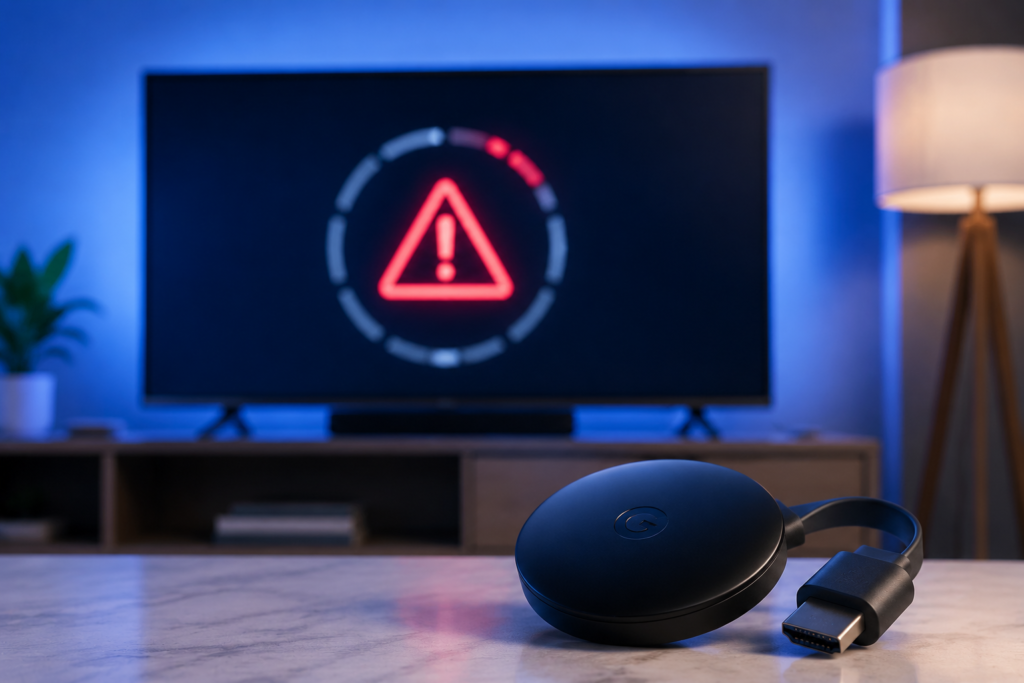
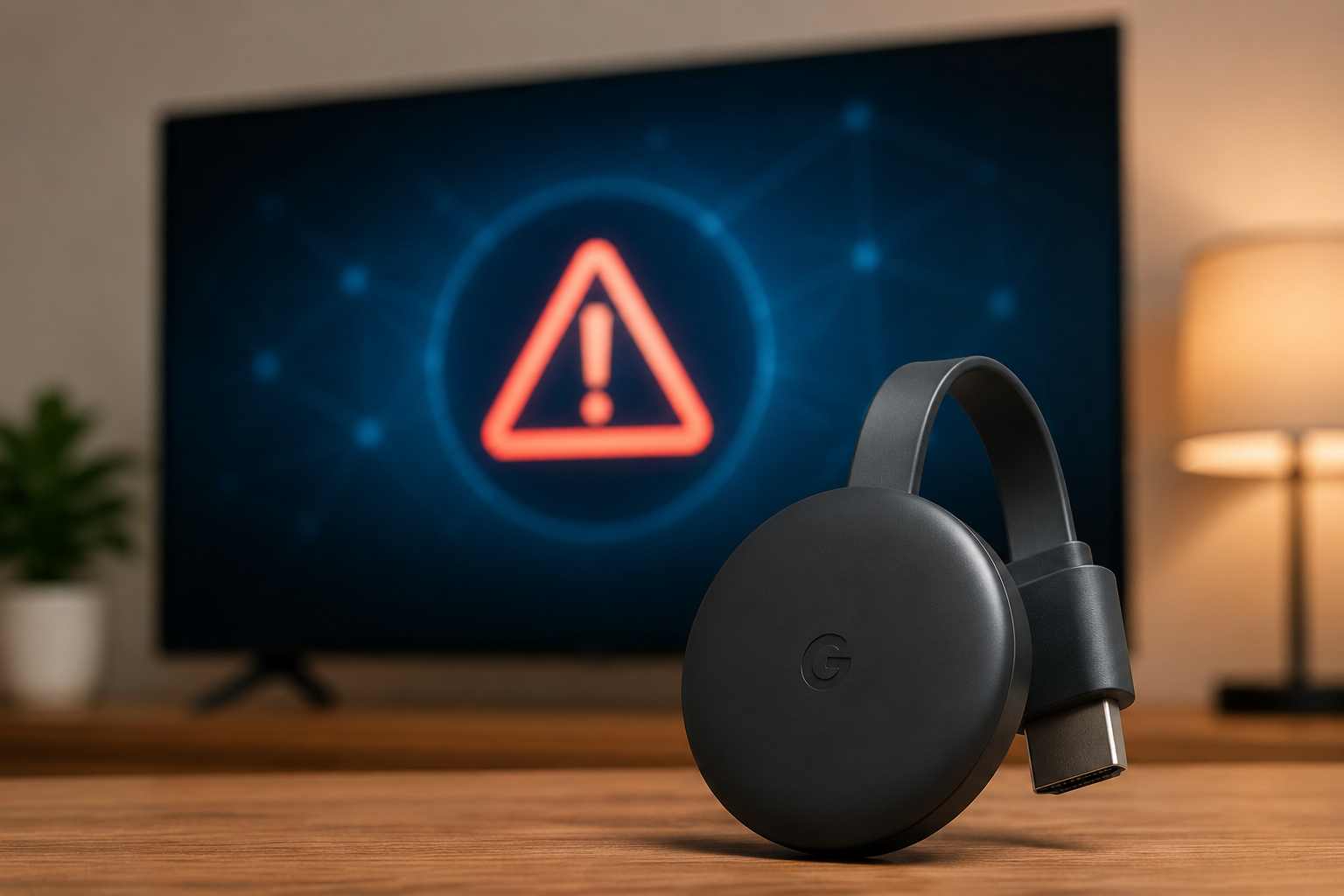
The Google Chromecast Untrusted Device problem shows up when your phone, tablet, or computer tries to connect to your Chromecast and the device fails a security check. Instead of casting normally, you see a message saying that the device is untrusted or cannot be verified.
This error is not just a small glitch. It means your network or device security process thinks something is wrong with the connection. Chromecast stops the casting session before any video begins.
Why This Error Happens
There are a few main causes for the Google Chromecast Untrusted Device issue:
1. Expired Security Certificate:
A certificate is like a digital ID card for your Chromecast. If it expires or cannot be checked properly, your phone marks the device as untrusted and stops casting.
2. Outdated Firmware:
Chromecast needs regular updates to stay compatible with new security standards. If the device firmware is old, it may fail the authentication check.
3. Network Problems:
Incorrect Wi‑Fi settings, unstable internet, or mismatched bands (2.4 GHz vs 5 GHz) may interrupt how Google Home and Chromecast verify each other.
4. App Errors:
Sometimes the Google Home app, YouTube, or other casting apps may have corrupted data or cache problems that interfere with device checks.
Each of these factors can trigger the untrusted device message, but most often this happens because the Chromecast cannot prove it is safe to connect.
How to Fix the Google Chromecast Untrusted Device Problem
Here are the best solutions you should try one by one:
1. Update the Google Home App
Make sure you use the most recent version of the Google Home app on your phone. Updates often include fixes for problems like untrusted device messages. This can help your device communicate more clearly with Chromecast.
2. Reboot Your Devices
Turn off your Chromecast, phone, and Wi‑Fi router for one minute, then switch them back on. This simple step can refresh network connections and let authentication succeed.
3. Connect to the Same Wi‑Fi Band
Ensure your Chromecast and casting device are on the same Wi‑Fi band (both on 2.4 GHz or both on 5 GHz). Mixed bands sometimes block local device verification.
4. Reset Wi‑Fi Settings on Chromecast
In the Google Home app, forget the network on Chromecast, then reconnect. This forces the device to recheck its security certificate.
5. Clear App Cache
On Android, go to app settings and clear cache for Google Home and your casting app. This can remove corrupted temporary files that prevent correct verification.
6. Factory Reset (Last Option)
If nothing else works, you may do a factory reset. This will delete all settings on the Chromecast, so only do it when you have tried all other steps.
By carefully trying these steps, most people can fix the Google Chromecast Untrusted Device error without technical expertise.
Common Mistakes to Avoid
Many users make the following mistakes when they see this message:
Resetting the Chromecast before updating the app
Using different Wi‑Fi bands for phone and Chromecast
Ignoring firmware updates in Google Home
Turning off devices too quickly without waiting
Avoiding these errors will save you time and frustration. Take each step slowly and check if the issue resolves before moving to the next one.
A Real Outage: Why It Happened
In March 2025, thousands of Chromecast users reported that their devices suddenly stopped working and showed the untrusted device message. The main reason was an expired security certificate in some older Chromecast models like Chromecast (2nd Gen) and Chromecast Audio.
This expired certificate caused the verification checks to fail. Google later released an update through the Google Home app to fix this. But if your device has not received that update or you reset it during the outage, you may keep seeing the error.
This shows how important regular updates and valid security certificates are for Chromecast devices.
Tips to Prevent Future Errors
Here are a few simple tips to help avoid future untrusted device problems:
Keep your Google Home app updated
Do not switch Wi‑Fi bands while casting
Keep Chromecast powered on so it can update automatically
Do not perform frequent factory resets
Ensure your router firmware is up to date
Preventive steps like these help your Chromecast stay connected and trusted over time.
When to Contact Support
If you have tried all the fixes and still get the Google Chromecast Untrusted Device error, it may be time to contact support.
Here are the best ways to get help:
- Use the Help & Feedback section in the Google Home app
- Visit the Google Nest Community online forums
- Search for your specific Chromecast model support page
Support teams can check if there are known issues with your device model or software version and guide you step‑by‑step.
Key Takeaways
- The Google Chromecast Untrusted Device problem happens when security validation fails.
- It is often caused by expired certificates, outdated firmware, or network issues.
- Most fixes are simple, like updating apps, rebooting devices, or reconnecting Wi‑Fi.
- Avoid mistakes like switching Wi‑Fi bands during casting.
- Regular updates and correct network setup help prevent future errors.
Understanding this problem and following the right steps will help you fix it with confidence.
FAQS
What does the “Google Chromecast Untrusted Device” message mean?
It means your casting device cannot verify that the Chromecast is secure, so casting is blocked for safety.
Why did this error start happening suddenly?
Often it is due to an expired security certificate or outdated Chromecast firmware.
Will factory reset always fix it?
Not always. Try updating the app, rebooting, and fixing Wi‑Fi first. Only factory reset if other steps fail.
Can old Chromecast models show this error more?
Yes. Older models like Chromecast (2nd Gen) and Chromecast Audio were more affected in past outages.
Do I need special tools to fix this?
No. The fixes can be done with the Google Home app and your home Wi‑Fi network.