
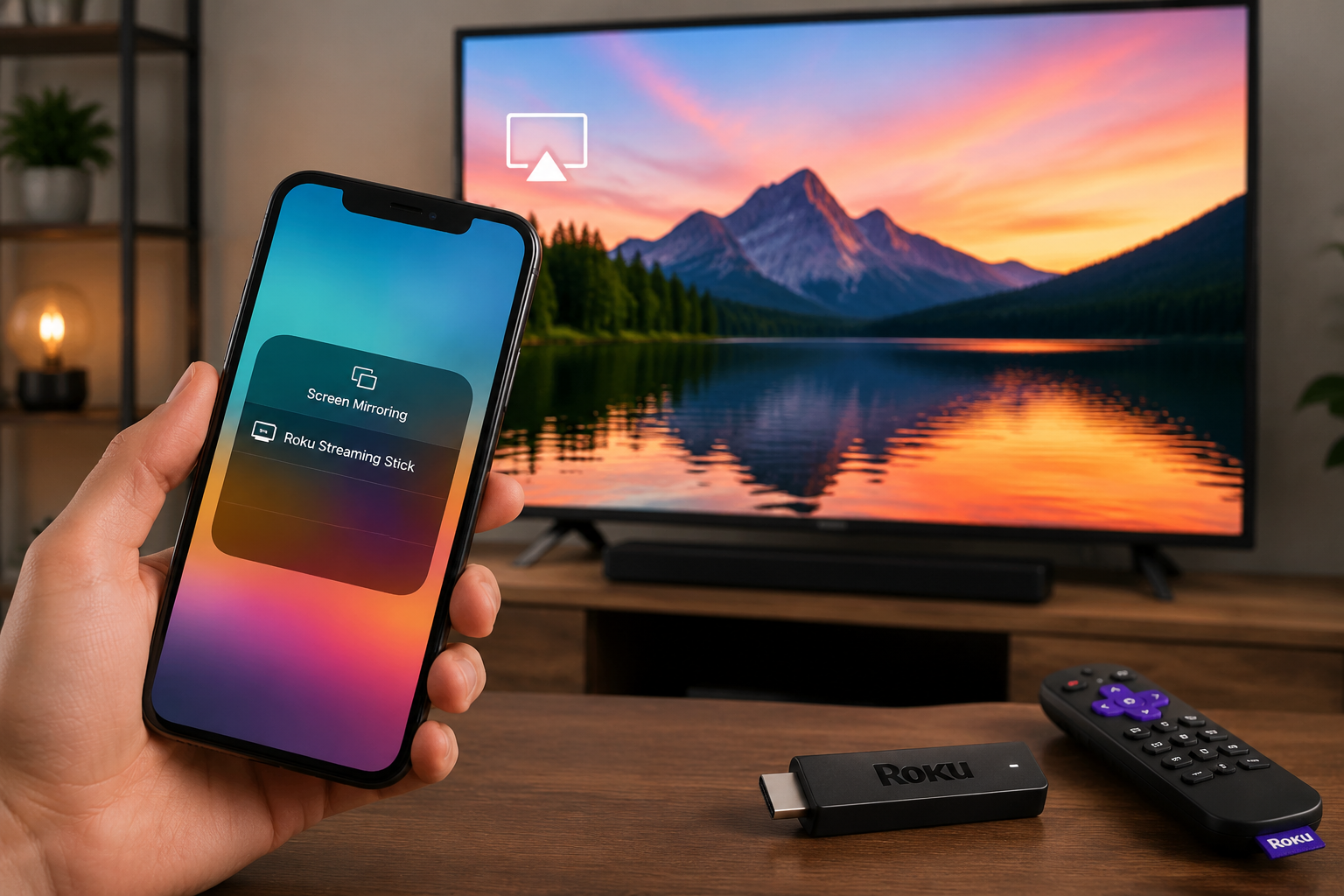
How to Enable Roku AirPlay on Your Device
Roku AirPlay lets you send videos, photos, and audio from Apple devices to your Roku TV or streaming device. Many people ask how to AirPlay on Roku and wonder why is my AirPlay not working at times. This article shows you easy steps to enable and use AirPlay, and it explains common problems and solutions. By the end, you will fully understand how to stream and mirror content using AirPlay on Roku devices.
Check Roku Device Compatibility with AirPlay
Before starting, you must make sure your Roku device supports Roku AirPlay. Not all older Roku models work with AirPlay. Most Roku TVs and Roku streaming players released in recent years include AirPlay support. To check, go to Settings > System > About on your Roku and see the model and software version. If the Roku OS version is older, you may need to update it first.
AirPlay works best with Roku OS 9.4 and later. Apple devices that support AirPlay include iPhones, iPads, and Macs with recent software. If your Roku model is too old, it might not appear as an AirPlay target on your Apple device.
Update Roku and Apple Device Software
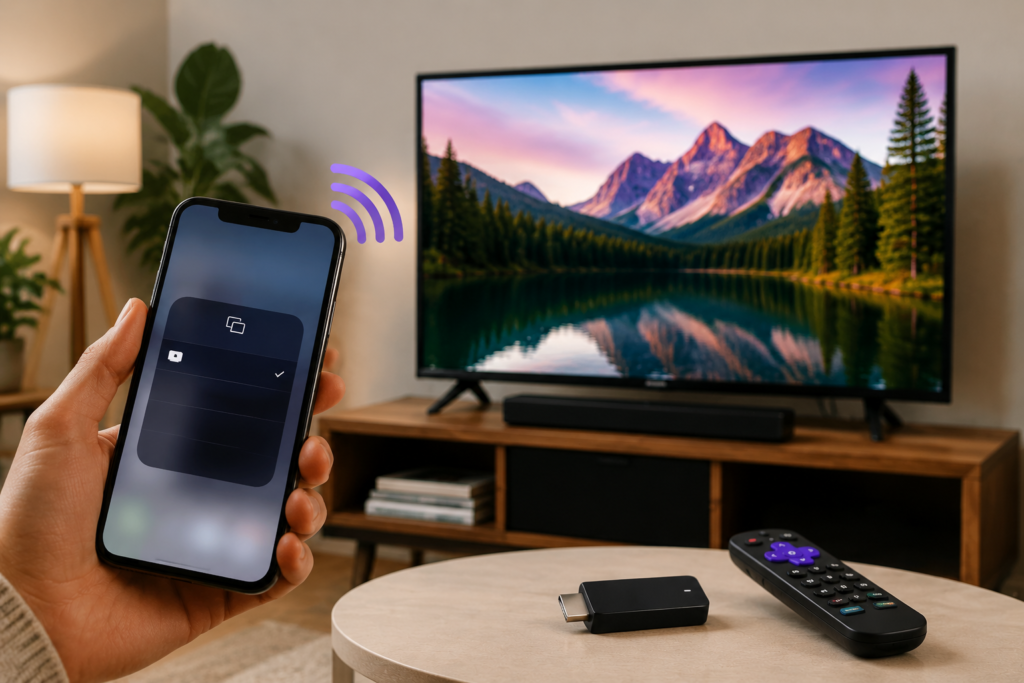
One common reason people ask why is my AirPlay not working is outdated software. To fix this, update both Roku and your Apple device to the latest versions. On Roku, go to Settings > System > System Update and check for updates. On your iPhone or iPad, open Settings > General > Software Update.
If you use a Mac, update using System Settings > General > Software Update. New software versions improve performance and fix bugs that can stop AirPlay from connecting or streaming content.
Connect to the Same Wi‑Fi Network
To use AirPlay, your Roku and Apple device must be on the same Wi‑Fi network. This is a key requirement for how to AirPlay on Roku to work properly. If the Roku and iPhone or Mac are on different networks, your device will not find the Roku in the AirPlay list.
Open your Wi‑Fi settings on both devices to confirm they are connected to the same network name. If your router has separate bands like 2.4 GHz and 5 GHz, make sure both devices use the same band. This simple step often solves AirPlay connection issues.
Turn On AirPlay in Roku Settings
Once your devices are on the same network, you must enable AirPlay on the Roku. On your Roku remote, press the Home button, then go to Settings > Apple AirPlay and HomeKit. Make sure the AirPlay option is set to “On” and that Require Code is adjusted to your preference.
Setting the Require Code to “First Time Only” helps you connect easily without entering a code every time. This setting improves convenience while keeping your Roku secure.
AirPlay from iPhone or iPad to Roku
Now that AirPlay is enabled, you can begin streaming. On your iPhone or iPad, open a video app like YouTube, Photos, or Apple TV. Tap the Share or AirPlay icon (a rectangle with an arrow). From the list, choose your Roku device name.
The content should begin playing on your Roku TV. You can use your device to control playback, pause, or adjust volume. This is the simplest method for how to AirPlay on Roku, and it works with most apps that support AirPlay.
Mirror Your Mac Screen to Roku
If you want to show your full Mac screen on your Roku, you can mirror it using AirPlay. On your Mac, go to Control Center and click Screen Mirroring. Select your Roku device from the list. Your Mac screen will appear on the TV.
Screen mirroring is helpful for presentations, slideshows, or showing content that does not support direct AirPlay streaming. Remember that mirroring can use more Wi‑Fi bandwidth, so a strong network helps prevent lag.
Why Is My AirPlay Not Working? Common Problems
Even with setup complete, AirPlay can sometimes fail. One reason is interference from other devices on your network. Another is poor Wi‑Fi signal, which can cause buffering or no connection. Restarting your Roku, router, and Apple device often fixes these temporary issues.
Another common problem is network isolation. Some routers have settings that prevent devices from seeing each other. If AirPlay does not find your Roku, check your router’s settings or ask your internet provider for help.
Troubleshooting Tips for AirPlay Issues
If you still ask why is my AirPlay not working, here are strong solutions:
- Restart your router and both devices
- Update all software on Roku and Apple devices
- Make sure Bluetooth is switched on
- Move devices closer to the Wi‑Fi router
- Turn Wi‑Fi off and on again on your Apple device
These tricks help fix most issues and keep AirPlay running smoothly.
Optimize AirPlay Performance on Roku
To improve streaming quality when using Roku AirPlay, use a fast Wi‑Fi network. If you have a dual‑band router, try switching to the 5 GHz band for faster speeds. This helps especially when streaming high‑definition videos or mirroring a Mac screen.
Lowering video resolution on the Apple device or Roku might also reduce lag if your Wi‑Fi is slow. Good placement of the router without walls or interference improves signal strength.
Apps and Content You Can AirPlay
You can use AirPlay with many popular apps including Netflix, Disney+, YouTube, and Apple TV+. Some apps do not show the AirPlay icon directly, but you can mirror the screen instead. This allows you to play any content that your device can display.
Note that some streaming services may restrict AirPlay due to licensing. If a specific app will not play via AirPlay, try mirroring your screen.
Frequently Asked Questions
What is Roku AirPlay?
Roku AirPlay is a feature that lets you stream or mirror content from Apple devices to a Roku device using Wi‑Fi.
How do I AirPlay on Roku?
Connect both devices to the same Wi‑Fi, enable AirPlay on Roku, then use the AirPlay or Screen Mirroring option on your Apple device.
Why is my AirPlay not working on Roku?
Common reasons include different Wi‑Fi networks, outdated software, or router settings blocking device communication.
Can I mirror my Mac to Roku?
Yes. Use the Screen Mirroring option in the Mac Control Center to show your full screen on Roku.
Do I need a special Roku model for AirPlay?
Yes. Only newer Roku TVs and streaming players with Roku OS 9.4 or higher support AirPlay.