
DISM Command for System Recovery
Windows problems may appear after a failed update, sudden shutdown, storage error, or damaged system file. The DISM Command is a built-in Windows tool that checks and repairs the system image. It is useful when updates fail, Windows features stop working, or System File Checker cannot repair files. With the correct steps, it may fix serious system problems without deleting personal data or reinstalling Windows.
What Does DISM Do in Windows?
DISM means Deployment Image Servicing and Management. Microsoft includes this tool in modern Windows versions. It can scan the Windows image, repair damaged components, manage drivers, control optional features, and work with offline Windows installations.
For most users, its main job is repairing the Windows component store. This store contains important files used for updates, recovery, and system file replacement. It is closely connected with the WinSxS folder.
When the component store becomes damaged, Windows Update may stop working. Optional features may fail to install, and SFC may report that it found damaged files but could not repair them.
When Should You Use DISM?
Use the DISM Command when Windows shows repeated update errors, missing features, damaged built-in apps, or unusual system behavior. It is also helpful after an interrupted update, power failure, or unsuccessful Windows repair.
You may need DISM when Windows Update repeatedly fails, SFC cannot repair files, Windows features do not install, built-in tools stop working, or Windows reports component store corruption.
DISM cannot repair every computer problem. It will not fix broken hardware, recover deleted personal files, or repair a physically damaged storage drive. Hardware problems may require different tests or professional support.
How to Open DISM as an Administrator
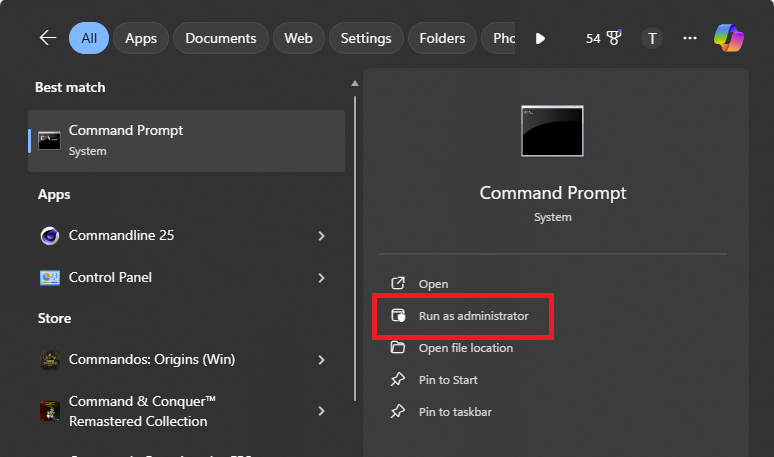
DISM repair tasks need administrator rights. Open the Start menu and type Command Prompt, PowerShell, or Windows Terminal. Right-click the result and select Run as administrator.
Select Yes when Windows asks for permission. The window title should show that it is running with administrator access.
Before starting, save your work and connect a laptop to power. Back up important documents when possible. Standard DISM health commands do not target personal files, but a backup gives extra protection if the drive already has a serious problem.
How to Check the Windows Image Health
Start with the quick health check by entering:
DISM /Online /Cleanup-Image /CheckHealth
The CheckHealth option checks whether Windows has already recorded image corruption. It does not perform a complete scan, and it does not repair anything.
For a deeper check, enter:
DISM /Online /Cleanup-Image /ScanHealth
The ScanHealth option searches the component store for damage. It may take several minutes or longer, depending on system speed and the condition of the drive.
The result may say that no corruption was found. It may also say that the component store is repairable. In that case, continue with the main repair command.
How to Repair Windows With RestoreHealth
The main DISM Command for Windows recovery is:
DISM /Online /Cleanup-Image /RestoreHealth
The /Online option tells DISM to repair the Windows installation that is currently running. It does not only mean that the computer must be connected to the internet.
The /Cleanup-Image option opens the image servicing tools. The /RestoreHealth option scans for corruption and replaces damaged components. Windows may use Windows Update to download clean repair files.
Progress may remain on one percentage for a long time. This does not always mean the tool has stopped. Keep the command window open and allow the process to finish.
Do not restart, shut down, or install major updates while the repair is running. After the process completes, restart the computer before checking the original problem.
Why Should You Run SFC After DISM?
After DISM repairs the Windows image, enter:
sfc /scannow
The System File Checker, also called SFC, checks protected Windows files. It replaces missing or damaged files with healthy copies when possible.
The correct recovery order is DISM first and SFC second. DISM repairs the source files that SFC may need. This gives SFC a better chance of fixing protected system files.
After SFC reaches 100%, read the result and restart Windows. Then test the update, app, feature, or service that was not working.
If SFC still cannot repair files, run RestoreHealth again and check the DISM and CBS logs for more details.
How to Use a Windows ISO as a Repair Source
Sometimes the DISM Command cannot find the repair files it needs. Error 0x800f081f often means that the required source files are missing or unavailable.
You can use a mounted Windows ISO as a local repair source. The ISO should closely match the installed Windows version, edition, language, architecture, and build.
After mounting the ISO, note its drive letter, such as D:. Open its Sources folder and look for install.wim or install.esd.
A WIM repair command may look like this:
DISM /Online /Cleanup-Image /RestoreHealth /Source:wim:D:\sources\install.wim:6 /LimitAccess
The number 6 is only an example image index. Your correct index may be different. The /LimitAccess option tells DISM not to contact Windows Update.
You can inspect the WIM file by entering:
DISM /Get-WimInfo /WimFile:D:\sources\install.wim
Choose the image index that matches your installed Windows edition.
How to Repair an Offline Windows Installation
DISM can also repair Windows when the operating system cannot start. You can use it through the Windows Recovery Environment or Windows installation media.
For an offline system, use /Image instead of /Online.
To scan an offline Windows installation, enter:
DISM /Image:D:\ /Cleanup-Image /ScanHealth
To repair it, enter:
DISM /Image:D:\ /Cleanup-Image /RestoreHealth
Replace D: with the real location of the offline Windows installation. Drive letters can change inside the recovery environment, so the normal Windows drive may not appear as C:.
You can use DiskPart to view drive letters. Enter diskpart, then enter list volume. Type exit when finished.
Avoid using DiskPart commands such as clean, delete, or format, because they may remove data.
How to Fix Common DISM Errors
Error 87 normally means that the command contains an incorrect option, missing space, or typing mistake. Check every slash, space, and word carefully.
Error 0x800f081f means that DISM cannot find suitable repair files. Use a matching Windows ISO, WIM file, ESD file, or another trusted repair source.
An access denied or elevation required message means that the command window was not opened as an administrator.
When DISM appears stuck, wait and check Task Manager for DISM, TrustedInstaller, or Windows servicing activity. Some repair stages take much longer than others.
If the command fails, review the DISM log at:
C:\Windows\Logs\DISM\dism.log
The log may show the missing package, source problem, or error code. Do not manually delete files from WinSxS, because this can damage Windows Update and system recovery.
How to Confirm That the Repair Worked
A successful DISM Command result usually states that the restore operation completed successfully. Restart Windows and run sfc /scannow.
Next, check for Windows updates and open the feature or application that was failing. You can also run CheckHealth again to confirm that the image is not marked as damaged.
If the problem remains, image corruption may not be the real cause. Check the storage drive, scan for malware, update important drivers, or use Startup Repair for boot problems.
For serious Windows damage, an in-place repair installation may reinstall system files while keeping personal files and installed applications.
FAQs
Is DISM safe to use?
Yes. Standard scan and repair options are generally safe when entered correctly. Back up important files before major system work.
How long does RestoreHealth take?
It may take several minutes or longer. The time depends on drive speed, system damage, internet access, and computer performance.
Can DISM work without internet access?
Yes. You can use a matching ISO, WIM file, ESD file, local folder, or network repair source.
Should I run DISM or SFC first?
Run DISM first, restart Windows, and then run sfc /scannow.
Does DISM delete personal files?
Normal health and repair options do not target personal files. However, keeping a current backup is always recommended.