How to Make a Sticker on iPhone in Minutes
Making your own stickers on an iPhone is now easier than ever. Thanks to iOS 17, you can turn your favorite photos into fun stickers without downloading extra apps. Whether you want to use a picture of your pet, a friend, or an object, the process takes only a few minutes. This guide explains how to make a Sticker on iPhone with easy steps, helpful tips, and simple solutions to common problems.
What You Need Before Making a Sticker on iPhone
Before you begin, make sure your device is ready. The best experience is available on an iPhone running iOS 17 or later. If you have an older version, some sticker features may not appear.
You also need a clear photo with a subject that stands out from the background. Pictures with good lighting and high quality give the best results. A person, pet, flower, or product works much better than a busy scene.
How to Make a Sticker on iPhone Using the Photos App
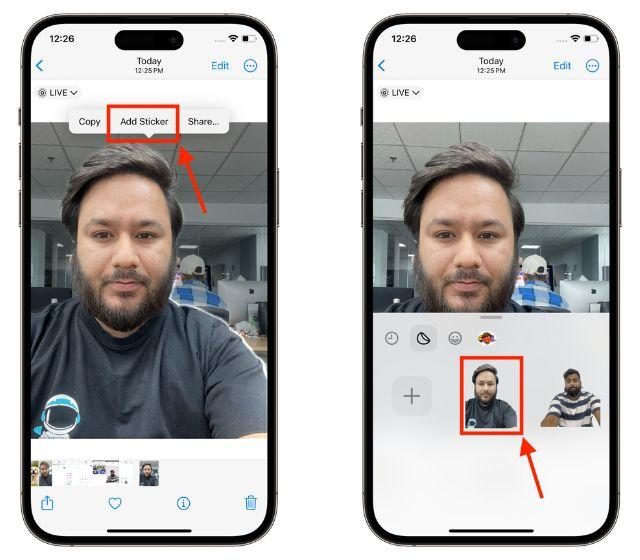
The easiest way to create a sticker is with the built-in Photos app. Open the photo you want to use and touch and hold the main subject. After a moment, the subject will glow, showing that Visual Look Up has detected it.
Tap Add Sticker, and your new sticker is saved automatically. This simple process is the fastest answer to How to Make a Sticker on iPhone because it uses Apple’s built-in tools without any extra software.
How to Edit Your Sticker with Built-In Effects
After saving your sticker, you can make it more fun by adding effects. Apple offers several styles, including Outline, Comic, Puffy, and Shiny. Each one gives your sticker a different look.
To add an effect, open the sticker drawer in Messages, touch and hold the sticker, and choose Add Effect. Try each style to see which one matches your photo best.
How to Use Your Custom Sticker in Messages and Other Apps
Once your sticker is ready, open the Messages app and start a conversation. Tap the plus (+) button, choose Stickers, and select your custom sticker. You can place it directly into the chat or drag it onto a message.
Many third-party apps also support Apple stickers. Depending on the app version, you may be able to use them in chats, comments, or shared images. This makes your conversations more personal and creative.
How to Create Animated Stickers from Live Photos
If you use a Live Photo, your sticker can include motion. This feature adds a fun animated effect that makes your sticker stand out from regular images.
Open a Live Photo, press and hold the subject, then tap Add Sticker. The movement is saved automatically. This is a great option for pets, children, or action shots that have natural motion.
Common Problems When Making Stickers on iPhone and How to Fix Them
Sometimes the Add Sticker option does not appear. This usually happens because the iPhone is using an older version of iOS or the photo does not have a clear subject. Updating your device and choosing a better image often fixes the issue.
If your sticker looks rough around the edges, try using a higher-quality photo with better lighting. Clear images help the iPhone separate the subject from the background more accurately.
Tips to Make High-Quality Stickers That Look Professional
Choose photos with a simple background whenever possible. A clean background helps the iPhone detect the subject faster and creates smoother edges around the sticker.
Good lighting is also important. Natural daylight usually gives the best results. Avoid blurry, dark, or low-resolution pictures because they may reduce the quality of your final sticker.
Can You Make Stickers on Older iPhone Models?
Older iPhone models can still use some sticker features if they support iOS 16 or later. These devices allow you to lift subjects from photos, but the complete sticker management tools are available in iOS 17.
If your iPhone cannot update to a newer version, you can still create stickers by using trusted third-party apps from the App Store. However, the built-in Apple feature is usually faster and easier to use.
In Short
Learning How to Make a Sticker on iPhone is simple because Apple has built the feature into the system. In just a few taps, you can turn your favorite photos into custom stickers and share them with friends and family.
Use clear photos, keep your iPhone updated, and explore different effects to make your stickers unique. With a little practice, you can create fun and professional-looking stickers in only a few minutes.
FAQs
Can I make a sticker on my iPhone without an app?
Yes. iOS 17 lets you create stickers directly from the Photos app.
Do I need iOS 17 to create stickers?
The full sticker feature works best on iOS 17 or later, while iOS 16 has limited options.
Can I make animated stickers?
Yes. Create a sticker from a Live Photo to keep its animation.
Where are my iPhone stickers saved?
They are stored in the Stickers drawer inside the Messages app.
Why can’t I see the Add Sticker option?
Your iPhone may need a software update, or the photo may not have a clear subject.