
Windows Installer Folder Cleanup Mistakes
A large C: drive can make any Windows user nervous, especially when the hidden C:\Windows\Installer folder takes up many gigabytes. It may look like a safe place to remove old files, but this folder stores important installer packages for programs already on your PC. Poor Windows Installer Folder Cleanup can break updates, repairs, and uninstalls, so you need to understand the risks before touching anything.
Why the Windows Installer Folder Gets So Large
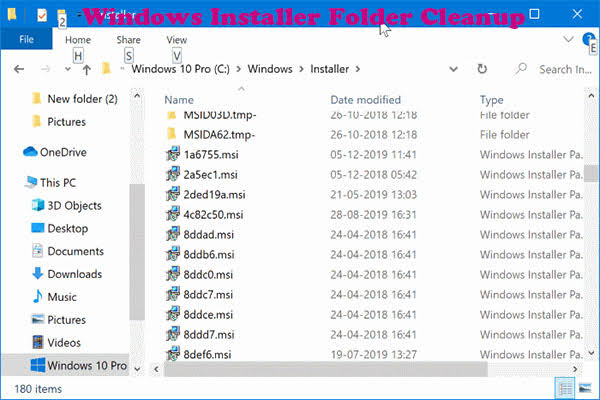
The Windows Installer folder keeps cached copies of MSI and MSP files. MSI files help Windows install, repair, change, or remove software. MSP files contain program patches and updates. Programs such as Microsoft Office, design tools, drivers, and business apps may place many packages in this folder.
The folder often grows because you install more software and receive more updates. A large size does not always mean the files are useless. Some old-looking files may still be connected to active programs. Windows may need them months later during an update, repair, or uninstall.
Mistake 1: Deleting the Entire Installer Folder
The most dangerous mistake is deleting C:\Windows\Installer or all the files inside it. Your programs may still open after the deletion, so the cleanup may appear successful. However, the real damage often becomes clear when an application needs its original installer package.
A future update may fail, the Repair option may stop working, or an application may refuse to uninstall. Windows may also show a message about a missing installation source. For this reason, Windows Installer Folder Cleanup should never mean deleting the whole folder.
Mistake 2: Removing MSI and MSP Files Manually
Installer files often have short and random-looking names. A file such as 17ab3.msi may look unimportant, but its name does not tell you which program owns it. Deleting files because they look old, large, or unknown is not a safe cleanup method.
MSP patch files can be just as important. A later update may depend on an earlier patch. Removing one file can break the patch process and stop future updates. Never judge an installer package only by its filename, creation date, or size.
Mistake 3: Trusting Every Cleanup Tool
Some third-party tools claim they can find orphaned installer files. An orphaned file is a package that appears to have no link to an installed program. These files can exist, but proving that they are truly unused can be difficult.
A tool may read damaged Windows Registry data or miss software installed for another user. It may also misunderstand company-managed apps, shared components, or older programs. Before using any Windows Installer Folder Cleanup tool, check its source, backup options, reviews, and recovery process.
Mistake 4: Moving the Folder to Another Drive
Users with a small system drive sometimes move the Installer folder to the D: drive and create a symbolic link. This method may free space on the C: drive, but it creates new risks. The second drive could disconnect, fail, or receive a different drive letter.
Folder permissions may also change, and some Windows recovery tools may not follow the symbolic link correctly. Moving a protected Windows folder is not the same as moving photos or videos. Increasing the system drive size is usually a safer long-term solution.
Mistake 5: Confusing Installer Cleanup With WinSxS Cleanup
The folders C:\Windows\Installer and C:\Windows\WinSxS have different jobs. The Installer folder supports installed applications. WinSxS is the Windows component store, which supports Windows features, system updates, recovery, and servicing.
The command DISM /Online /Cleanup-Image /StartComponentCleanup works with the WinSxS component store. It does not safely remove MSI or MSP files from the Installer folder. Using a WinSxS guide for Windows Installer Folder Cleanup can create wrong expectations and unsafe actions.
Mistake 6: Changing Permissions to Force Deletion
Windows protects the Installer folder to prevent accidental changes. Some users take ownership of the folder, give themselves full control, and delete files that Windows would normally protect. This removes an important safety barrier.
Changing permissions may also create access problems for Windows Installer and other system services. When Windows blocks a deletion, do not treat the warning as an obstacle that you must defeat. It is often a sign that the file should remain protected.
Safe Ways to Free Up Drive Space
Open Settings > System > Storage and review Temporary files, Cleanup recommendations, and Storage Sense. These built-in Windows tools remove supported temporary data without directly clearing the Installer cache. Always check each category before confirming the cleanup.
Be careful with the Downloads category because it may contain personal documents, installers, photos, and other files you still need. You should also empty the Recycle Bin only after reviewing its contents.
You can uninstall unused programs through Settings > Apps > Installed apps. A normal uninstall lets the program remove its files and installer records correctly. This is much safer than deleting an MSI package from the Installer folder.
Large videos, virtual machines, ISO files, game recordings, and old downloads can also use a lot of space. Move these files to another internal drive, an external disk, or trusted cloud storage. These actions usually recover space with less risk than direct Windows Installer Folder Cleanup.
What Happens After Important Files Are Deleted
Damage may not appear immediately. A program can continue working because its main files are already installed in another location. The missing MSI or MSP package may only be needed during a future update, repair, upgrade, or removal.
Common problems include failed software updates, repeated installer windows, broken Repair options, and programs that cannot be removed. Windows may ask for an installation disc, an MSI package, or a network location that you do not have.
You may also see messages such as “The installation source is not available” or “The feature you are trying to use is on a network resource that is unavailable.” These messages do not always prove that cache files were deleted, but missing packages are a possible cause.
How to Recover Deleted Installer Files
Stop deleting files as soon as you notice a problem. Check the Recycle Bin and restore removed files to their original location. If a cleanup tool created a backup or quarantine folder, use its restore feature before running more repair tools.
Next, try the affected program’s Repair option. Open Settings > Apps > Installed apps, find the program, and check whether repair or advanced options are available. Some desktop programs also offer repair tools through Control Panel > Programs and Features.
You may need to reinstall the exact program version from the official software vendor. The version, language, and system type should match the damaged installation. A different installer may not replace the missing cached package.
If many applications are affected, try System Restore or restore a complete system image made before the deletion. System Restore may help with some system changes, but it may not recover every missing third-party installer package.
Ask the software vendor or an IT professional for help when an important business application is affected. In severe cases, reinstalling Windows and all applications may be the only reliable repair method.
Best Practices for Future Cleanup
Treat C:\Windows\Installer as a protected service folder, not as a temporary folder. Do not delete, rename, move, or compress it only because it has become large. Its size alone does not prove that its files are unnecessary.
Back up important personal files before making major system changes. You should also create a restore point and save official installers for important applications. These steps can make recovery easier if an update or repair later fails.
The safest cleanup plan is simple: leave the Installer cache alone, remove unused applications normally, use Windows storage tools, move personal files, and upgrade the system drive when space remains low. This protects your software and prevents difficult repair work.
FAQs
Can I delete files from the Windows Installer folder?
No. Manual deletion can stop programs from updating, repairing, upgrading, or uninstalling correctly.
Why is the Windows Installer folder so large?
It stores MSI installation packages and MSP patches required by installed software and its updates.
Is Storage Sense safe to use?
Yes. Storage Sense removes supported temporary files and does not normally empty the protected Installer cache.
Can I move the Installer folder to another drive?
It is not recommended. Drive failures, permission changes, and symbolic-link problems may affect future software updates.
What should I do if I already deleted installer files?
Restore them from the Recycle Bin or a backup. Then repair or reinstall the affected program using its official installer.