
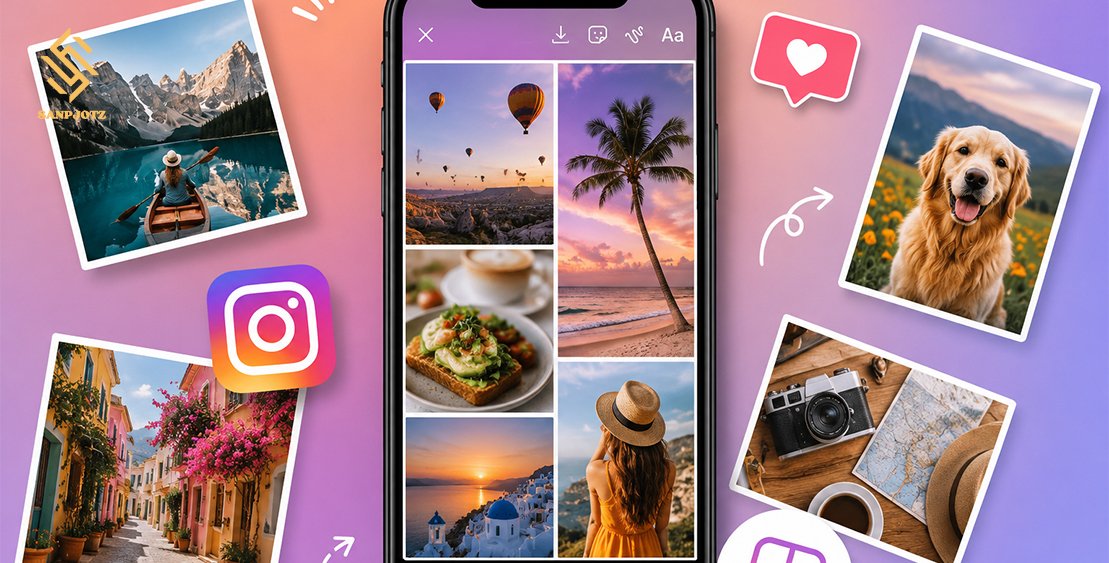
How to Add Multiple Photos to Instagram Story Like a Collage
Instagram Stories are one of the most popular ways to share daily moments. Sometimes, one picture is not enough to tell the full story. A collage lets you show several memories, products, or ideas in one place. If you want to learn How to Add Multiple Photos to Instagram Story, this guide explains every method in simple steps. You will also learn useful tips, common fixes, and the best way to create an attractive Story without using difficult editing tools.
Why People Add Multiple Photos to an Instagram Story
A collage helps you share more information without posting many Stories. It is perfect for travel memories, birthday celebrations, shopping finds, food photos, or business promotions. Instead of showing one image at a time, you can display several pictures in a single Story.
Many Instagram users also create collages because they look more creative. A well-designed Story catches attention and keeps viewers watching longer. Businesses use collages to display products, while creators use them to share highlights from events or daily life.
How to Add Multiple Photos to Instagram Story Using the Layout Feature
The easiest method is the built-in Layout feature. It allows you to place several photos inside a ready-made grid. You do not need another app because everything is available inside Instagram Stories.
Open Instagram, swipe right to open the Story camera, and select Layout from the tools. Choose your preferred grid, add photos from your gallery or camera, and adjust them if needed. After that, you can include text, music, stickers, or GIFs before sharing your Story.
This method is best if you want a clean and balanced collage. Every picture gets equal space, making it ideal for family photos, travel collections, or before-and-after comparisons.
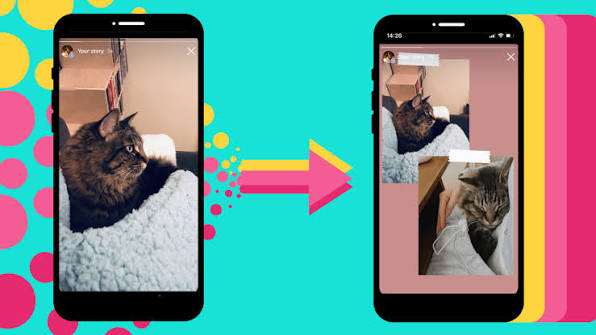
How to Make a Custom Instagram Story Collage with Photo Stickers
If you want more creative freedom, use the Photo Sticker feature. This option lets you place pictures anywhere on the screen instead of using a fixed grid. It is one of the best ways to create a unique collage.
Start by choosing a background photo or a plain color. Tap the Sticker icon and select the Photo Sticker option. Add one picture from your gallery, then repeat the process to insert more images. You can move, rotate, resize, and overlap every photo until the design looks perfect.
This method works well for memory boards, mood boards, product showcases, and event highlights. It also gives your Story a more personal and stylish appearance.
How to Upload Multiple Photos as Separate Instagram Story Slides
Some users want to share many pictures but do not need a collage. In that case, you can upload multiple photos as separate Story slides. This keeps every image clear and easy to view.
Open the Story camera, tap the gallery icon, and choose Select Multiple. Pick all the photos you want to upload, edit each one if needed, and share them together. Every image becomes its own Story slide, creating a smooth sequence for your followers.
This option is useful for travel diaries, wedding albums, step-by-step tutorials, or event coverage where every picture deserves its own screen.
How to Add Multiple Photos to Instagram Story on iPhone and Android
The process is almost the same on both iPhone and Android devices. Open the Story camera, then choose either Layout or Photo Sticker, depending on the type of collage you want to make.
If you cannot find one of these features, update the Instagram app from the App Store or Google Play Store. Some new tools appear only after installing the latest version. Restarting the app can also solve small problems.
Whether you use How to Add Multiple Photos to Instagram Story on Android or iPhone, the available editing options are very similar, making it easy for everyone to create beautiful Stories.
Common Problems When Adding Multiple Photos to Instagram Story and How to Fix Them
Sometimes the Layout option or Photo Sticker may not appear. This usually happens because the app is outdated or the feature has not reached every account yet. Updating the app often fixes the issue.
If your photos look blurry, use high-quality images and avoid taking screenshots. A strong internet connection also helps maintain image quality during upload. If your collage looks crowded, reduce the number of photos and leave some empty space to make the design cleaner.
Another common problem is cropped images. Try resizing the photos with two fingers or use the Photo Sticker method for better control over placement.
Best Tips to Make Your Instagram Story Collage Look Professional
Choose one main photo and make it larger than the others. This creates a clear focus for viewers. Keep your color style consistent so every picture looks like part of the same story.
Add only short text because people usually watch Stories quickly. Use music, location tags, or hashtags only when they improve the Story. Too many stickers or effects can distract viewers from your photos.
If you are creating a collage for a business, use your brand colors and include a simple call to action like Shop Now, Learn More, or Visit Our Website. These small details make your Story look more professional and increase engagement.
FAQs
Can I make a collage without another app?
Yes. Instagram includes Layout and Photo Sticker features that let you create collages without downloading another application.
Which method is better: Layout or Photo Sticker?
Layout is better for neat grids, while Photo Sticker is better for creative designs with free placement.
Can I upload many photos at once?
Yes. Use the Select Multiple option to upload several photos as separate Story slides.
Why can’t I see the Photo Sticker option?
Update your Instagram app to the latest version and restart it. Some features are released gradually to different users.
Is there a limit to how many photos I should use?
For a clean collage, three to six photos usually create the best balance without making the Story look crowded.