

What Is Whoer.net? IP Checks, DNS Leaks, and the Anonymity Score
Whoer.net is a free online tool that shows the public IP address your browser uses, its estimated location, and the network linked to it. It also helps you check for possible DNS and WebRTC leaks when you use a VPN. If you opened the site to see whether your VPN is working, check the public IP, DNS provider, and WebRTC results before looking at the anonymity score. Each answers a different question about your connection.
What Is Whoer.net?
Whoer.net starts the IP check when you open its homepage. It combines what the website can see directly, such as the address your browser connects from, with information taken from databases and tests run in your browser. That difference matters. Your public IP is something the site observed, while the city listed beside it is a database estimate.
The site also offers a separate DNS leak test, a speed test, ping, and a WHOIS lookup. Its Web Proxy is a separate browser extension. You can run the basic IP and DNS checks directly in your browser without installing anything.
Public IP, ISP, and Location
Devices on the same home Wi-Fi can share a public IP even though they each have a different local address. If you turn on a VPN on your laptop, its browser can show the VPN’s public IP while your phone still shows the home connection. That’s why a result from one device tells you little about another device unless both use the same setup.
The report also shows a provider name and an ASN, or autonomous system number. The ASN identifies a network that routes internet traffic. When you use a VPN, the provider name might belong to the company that hosts the VPN server. If the reported city differs from the one you chose in the app, check whether the address changed and which network it belongs to before treating the location as a problem. An IP lookup cannot reliably pinpoint a home address.
How to Run a DNS Leak Test
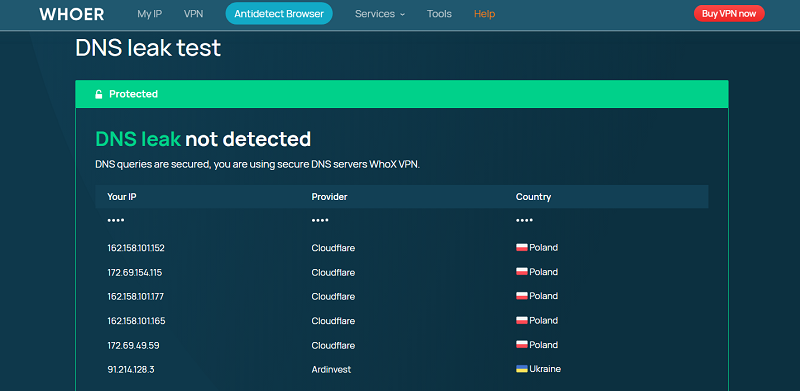
DNS helps your browser find the address for a website name. A server called a DNS resolver handles that lookup. Run Whoer.net’s DNS leak test and look at the provider names it returns. If a resolver from your home internet provider still appears when you expect your VPN to handle DNS, check the VPN’s DNS settings and your browser’s secure DNS settings.
A country mismatch is a weaker clue. Say you connect to a VPN server in Germany, but the test shows a resolver in the Netherlands. Your browser might be using a secure DNS service you selected, or your VPN might use a separate DNS provider. Start by finding out who runs the resolver and whether you expect to see it. The country label alone cannot tell you whether the requests traveled outside the VPN tunnel.
How to Spot a WebRTC Leak
WebRTC helps browsers support video calls, voice calls, and other live connections. While setting up a connection, the browser can reveal information about which network addresses it can use. If the main report shows your VPN’s public IP but the WebRTC result shows the public IP you had before connecting, your browser may be exposing the address you expected the VPN to hide.
A local address such as 192.168.1.12 has a different meaning. Many home networks use addresses in that range, and the same local address can exist in thousands of homes. For a VPN leak check, look for a match with your original public IP. Simply seeing two addresses in the report tells you very little.
How to Test Your VPN With Whoer.net
With the VPN off, open Whoer.net in your usual browser and privately note your public IP and the provider shown by the DNS test. Turn on the VPN, reload the main report, and run the DNS test again. Check whether the public IP changed, whether WebRTC shows the original address, and whether the DNS resolver matches your expected setup. Use the same browser and Wi-Fi connection for both checks so you can see what changed when you connected the VPN.
If your public IP stays the same, check whether your VPN excludes the browser through split tunneling, a setting that lets some apps use your regular connection. If you use a browser-only VPN or proxy extension, check the browser where it’s installed and active. A successful result in that browser only tells you about the session you tested.
Whoer.net Anonymity Score Explained
Whoer.net calls its anonymity score “Your disguise.” The site can show warnings for a time-zone mismatch, a data-center IP, or an address that appears on a blacklist. Some warnings display a deduction of 10 percentage points. The public report gives limited detail about how the full score is calculated, so it’s easier to understand the result by reading the individual warnings.
Consider an English-speaking traveler using a VPN server in France. Their browser language may trigger a mismatch even when the public IP and DNS results look as expected. A score of 100% also has a limited meaning. Whoer.net only measures the signals it checks, and a site where you sign in can still recognize your account.
Proxy Detection and IP Blacklists
Whoer.net looks for signs of VPN, proxy, Tor, and data-center connections. A data-center label can be normal when you use a VPN because many VPN servers run on hosted networks. Different websites can classify the same public IP differently, depending on the data and rules they use.
A blacklist warning means Whoer.net found the address on a list it checks. If the warning appears only after you turn on your VPN, it applies to the VPN’s public IP. Other people may share that address, so the warning alone tells you little about your own device. If you’re investigating a block on another service, check the message from that service too, since it may use a different reputation list.
What Your Browser Reveals
The expanded report can show your language, time zone, and user agent, which is text the browser sends to describe itself. Websites can combine some of these details to recognize a browser, a practice called browser fingerprinting. A VPN can change the public IP your browser presents while leaving many of those details the same.
Some information reaches the website as soon as your browser requests the page. The browser’s preferred language, for example, can appear in the request headers. Other results depend on tests the page runs in your browser. That’s why the report can display your public IP and language even when a browser test returns no result.
What Data Does Whoer.net Collect?
Whoer.net’s website privacy policy names WHOIX LTD, a company registered in Cyprus, as the operator. The policy says the site may process your IP address, estimated location, browser and device details, and activity on the site. The information also depends on the test you run. A leak test, for example, may process DNS or WebRTC details.
The policy says web and security logs are generally kept for up to 90 days, with longer periods possible for investigations or legal claims. Diagnostic results are generally kept for a short time, though they can be kept longer if tied to a support request. If you share a screenshot for help, crop out your full IP address and any fields unrelated to the issue.
FAQs
Is Whoer.net free to use?
Yes. The main IP lookup and DNS leak test are free. Both run directly in your browser.
Why does Whoer.net show the wrong city?
IP location comes from a database estimate. It may point to a nearby city, your provider’s network, or the location linked to your VPN server.
Why does the DNS test show several servers?
A DNS provider may use several resolvers. Check which providers appear and whether they match your setup. The number of servers alone is a poor sign of a leak.
Does incognito mode change my IP on Whoer.net?
Opening a private window by itself leaves your public IP the same. You may see a different result if a proxy extension runs in your regular window but lacks permission to run in private mode.