
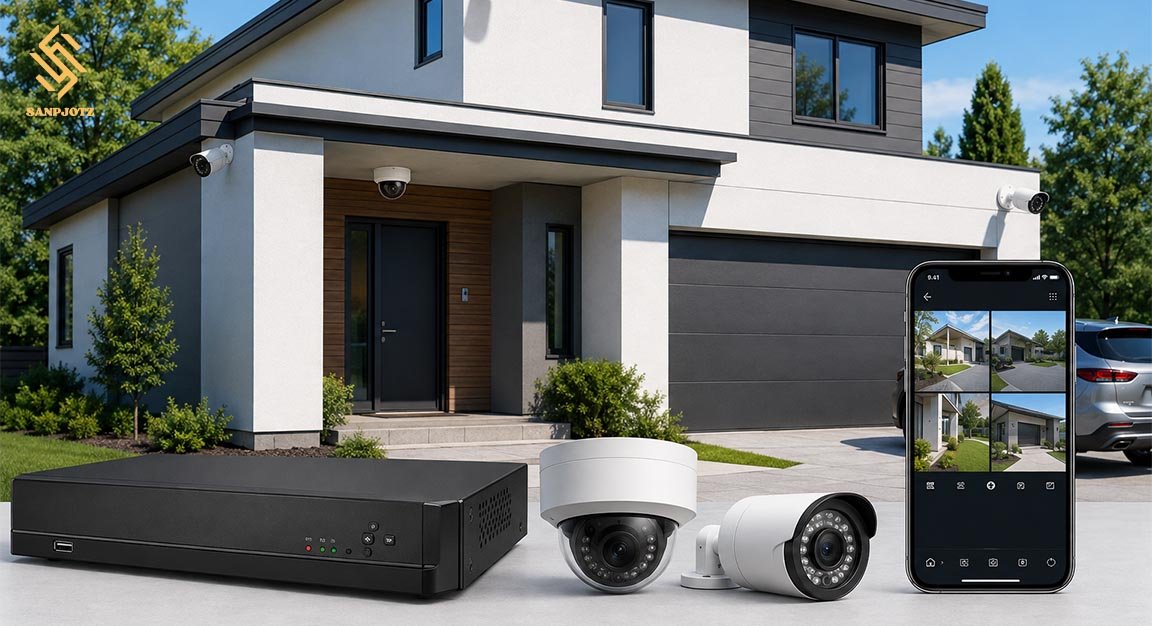
Reolink Camera System: Setup, Features and Tips
A Reolink Camera System is designed for people who want to watch a home, office, shop, garage, or outdoor area from one place. Reolink offers PoE, plug-in Wi-Fi, battery-powered Wi-Fi, and 4G camera options. Compatible NVRs can manage several cameras and store video on a hard drive. Users can also watch live video, play recordings, and receive alerts through the Reolink App. The exact features depend on the camera and recorder model, so it is important to check compatibility before buying or adding new devices.
What Is a Reolink Camera System and How Does It Work?
A Reolink Camera System normally includes one or more IP cameras, a network connection, storage, and software for viewing footage. Some cameras can work alone, while others can be connected to a Network Video Recorder (NVR). An NVR gives users one central place to view several cameras, save recordings, and play older video.
The system can be managed through a monitor connected to the NVR, the Reolink Client on a computer, or the Reolink App. Reolink says its mobile app supports remote multi-screen live viewing of up to 16 streams, along with single-screen playback and real-time push or email alerts for supported events.
Reolink PoE, Wi-Fi and Battery Cameras Compared
PoE cameras use an Ethernet cable for network data and power when connected to supported PoE equipment. A PoE camera can connect directly to a PoE port on a compatible Reolink NVR, which can provide power to the camera. This makes PoE useful for fixed installations because one cable can provide a stable wired connection.
Plug-in Wi-Fi cameras send data over Wi-Fi but still need a power source. Battery-powered Wi-Fi cameras are easier to place where running cables is difficult. However, recording choices, NVR support, and smart features can vary by model. Users should therefore check device compatibility before building a system with different camera types.
How to Set Up the System Step by Step
Before installing a Reolink Camera System, choose the areas that need the most protection. Common locations include front doors, driveways, gates, back gardens, side paths, shops, and storage rooms. Place cameras high enough to reduce easy tampering, but keep the viewing angle low enough to capture useful details such as faces. Test the image during both day and night before making the position permanent.
For an NVR setup, connect the NVR’s LAN port to the router with an Ethernet cable. Reolink’s setup process then asks users to create a device password and device name. PoE cameras can be connected to supported PoE ports, while other compatible cameras may be added over the same network. After setup, check live view, date and time, recording, alerts, playback, and remote access.
How to Add Cameras to a Reolink NVR
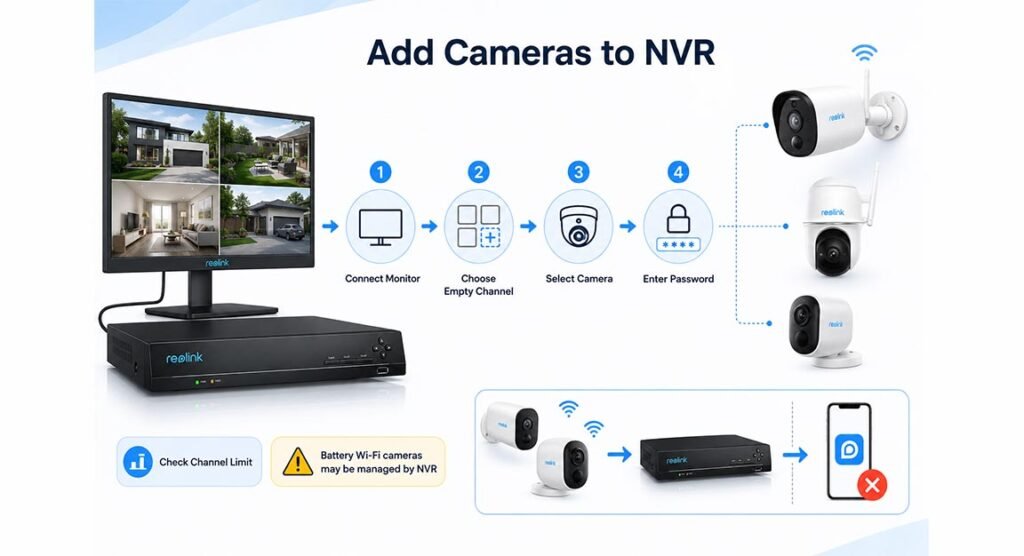
Current Reolink instructions say cameras can be added from the NVR interface on a monitor connected by HDMI or VGA. The user can select an empty channel on the preview page or open the channel settings. Available cameras appear in the device list, and the correct camera password is entered when adding the device.
The setup must stay within the supported channel limit of its NVR. Reolink also notes an important point for some battery-powered Wi-Fi cameras: after such a camera is added to an NVR, the NVR may take over its management. Standalone access to that camera through the app or desktop client may then stop until the camera is removed from the NVR.
Recording and Storage Options
Reolink devices can support several local recording methods. Depending on the model, a camera may record to a microSD card, while an NVR can save footage from compatible cameras to its internal hard disk. Reolink Home Hub products provide another local storage option for supported devices.
Users can choose continuous recording or motion recording on supported devices. Continuous recording saves footage during selected periods and uses more storage. Motion recording starts when the camera detects an event that matches its settings. Reolink explains that motion recording can save storage and make important events easier to find. Recording schedules can also be set for specific hours and days.
Smart Detection, Alerts and Motion Settings
Many current cameras include smart detection features. Depending on the model, the system may identify people, vehicles, pets or animals, and general motion. Reolink provides controls such as sensitivity, alarm delay, detection zones, non-detection areas, and object-size filters on supported models. These settings can help reduce unwanted alerts caused by small objects or movement in unimportant areas.
This can make the system easier to manage in a busy location. For example, users may choose to focus recordings on people and vehicles instead of every movement. Motion recording schedules can also limit recording to selected hours. Because these options differ between models, users should check the settings available on each camera rather than assume every feature is included.
Using the Reolink App for Remote Monitoring
The Reolink App is available for Android and iOS. It allows users to open live video, watch recordings, change supported settings, and receive push alerts. Multi-camera viewing can be helpful for checking several parts of a property quickly.
Remote access should be tested while the phone is using mobile data instead of the same home Wi-Fi network. Users should also confirm that important notifications arrive correctly. If alerts become too frequent, it is better to adjust sensitivity, object size, detection zones, or event types than to turn all notifications off.
Best Setup and Security Tips
A good Reolink Camera System should cover likely entry points without creating unnecessary blind spots. Avoid aiming cameras directly at strong lights when possible, and test the night image after installation. Keep lenses clean, protect outdoor cable connections, and make sure Wi-Fi cameras have a strong network signal at their final position.
Use a strong, unique device password and keep the Reolink App, Client, and device firmware updated. Check storage and playback regularly so you know recordings are working before an important event happens. If a camera disappears, first check power, cables, network status, available NVR channels, and the camera password. For missing recordings, review the schedule, storage, detection settings, and system time.
FAQs
Does Reolink need an NVR?
No. Many Reolink cameras can work as standalone devices. An NVR is useful when several compatible cameras need centralized recording and management.
Can Reolink cameras record 24/7?
Yes, supported cameras and NVRs can use continuous recording schedules. Available options depend on the camera, recorder, and storage method.
Can I watch Reolink cameras on my phone?
Yes. The Reolink App supports live viewing, playback, supported device settings, and push notifications on Android and iOS.
Is PoE better than Wi-Fi for security cameras?
PoE gives a wired connection and can carry both power and data through one Ethernet cable. Wi-Fi can be easier where network cables are difficult to install.
How can I reduce false Reolink alerts?
Use supported smart detection tools such as sensitivity controls, detection zones, alarm delay, and object-size settings.