How Do I Make Stickers on Snapchat Step by Step?
Many users ask, How Do I Make Stickers on Snapchat without downloading another app? Snapchat has a built-in Scissors tool that can turn a person, pet, product, or object into a reusable sticker. You can create one from a new Snap or use a picture saved on your phone. This guide explains each method, where to find saved stickers, how to edit them, and how to solve common problems.
What Is a Custom Sticker on Snapchat?
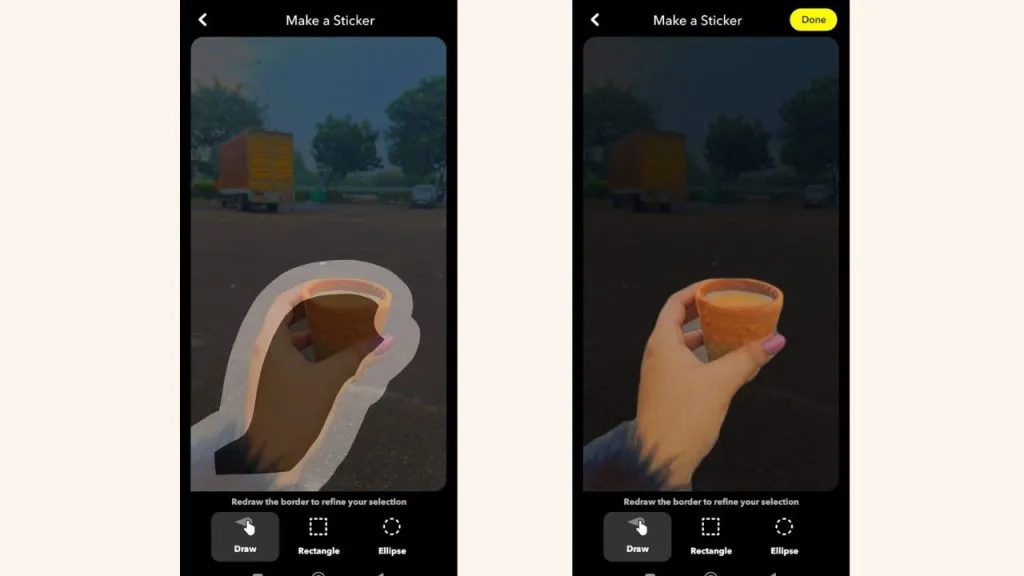
A custom sticker is an image cut from one of your photos. It can show your face, a pet, food, a toy, or another clear object. Snapchat removes the area outside your selection and places the chosen part on your Snap.
Custom stickers are different from normal emojis and Bitmoji stickers because they come from your own pictures. Stickers created with Snapchat’s Scissors tool are automatically saved in the sticker drawer, so you can use them again in Snaps or Chat.
What Should You Prepare Before Making a Sticker?
Before learning How Do I Make Stickers on Snapchat, update the app through the App Store or Google Play Store. Sign in to the correct Snapchat account and allow the app to access your camera. You must also allow photo access when using a picture from your Camera Roll.
Choose a bright, clear photo with a simple background. The object should have edges that are easy to see. For example, a dark pet in front of a light wall will be easier to select than a dark pet sitting on a dark sofa.
How Do You Make a Sticker From a New Snap?
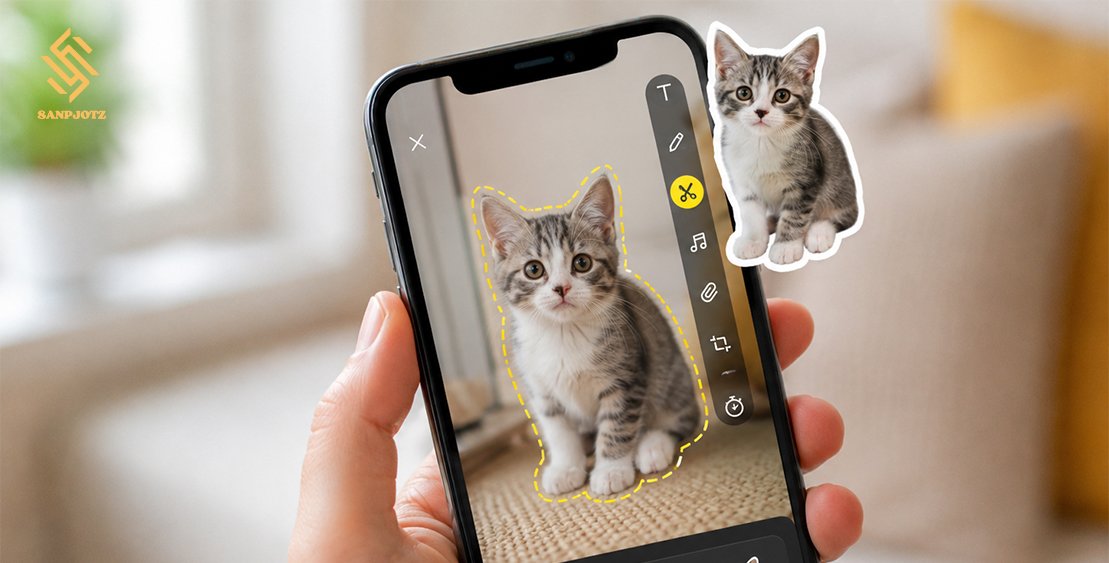
Open Snapchat and tap the round Camera button to take a photo. After taking the picture, you will reach the Preview screen. Look at the editing tools on the side of the screen and tap the Scissors icon.
Use one finger to draw around the object you want to copy. Follow its outside edge slowly. When you lift your finger, Snapchat turns the selected area into a sticker and places it on your Snap. The sticker is also saved automatically in your sticker drawer.
How Do You Make a Sticker From a Camera Roll Photo?
A second answer to How Do I Make Stickers on Snapchat is to use a photo already stored on your phone. Open a Chat conversation and tap the sticker icon near the message box. Select New Sticker, choose a photo, and follow the instructions shown on the screen.
When the sticker looks correct, tap Save Sticker. This method is useful for old photos, reaction faces, pet pictures, and product images. Snapchat officially lists opening Chat, tapping the sticker icon, selecting New Sticker, choosing a photo, and saving it as the required steps.
Where Can You Find Your Saved Snapchat Stickers?
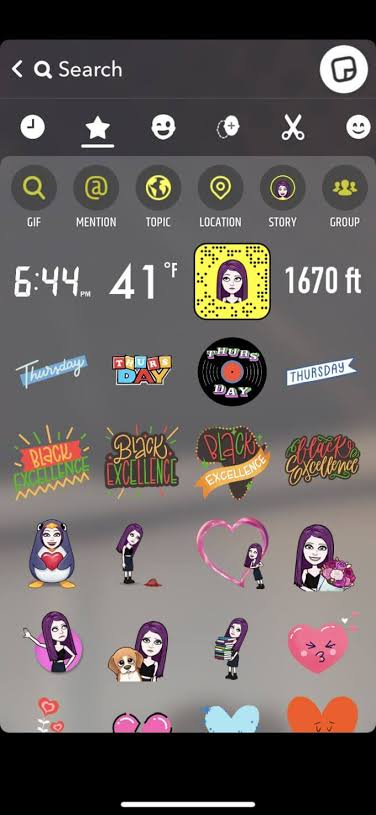
To find a saved sticker, take a new photo or video Snap. On the Preview screen, tap the sticker icon to open the sticker drawer. Look through the available tabs until you find the section containing your custom stickers. Tap any sticker to place it on your Snap.
You can also use custom stickers in Chat. Open a conversation and tap the smiley face icon beside the message box. Select a sticker to send it. Snapchat also allows you to press and hold some stickers to add them to Favorites or remove them from Recents.
How Can You Move, Resize, and Rotate a Sticker?
After adding a sticker, press it with one finger and drag it to another place. You can put it near text, over an object, in a corner, or on a person’s face. Make sure it does not hide an important part of the picture unless that is your goal.
Place two fingers on the sticker and move them apart to make it larger. Bring them together to make it smaller. Turn your fingers to rotate the sticker. These controls help the sticker match the position, angle, and size of other objects in your Snap.
How Do You Use a Sticker in a Video Snap?
Press and hold the Camera button to record a video. On the Preview screen, open the sticker drawer and choose a custom or ready-made sticker. Move it to the correct place and adjust its size.
On supported versions, you can press and hold the sticker over a moving person or object to pin it. Snapchat will try to make the sticker follow that object. Tracking works best when the video is bright and steady. Choose a large area, such as a shirt, instead of a small finger.
How Do You Remove or Delete a Snapchat Sticker?
To remove a sticker from the Snap you are editing, press it and drag it toward the trash icon when the icon appears. This removes the sticker from that Snap, but it may remain in your saved sticker collection.
Deletion options can differ between app versions. Open your custom sticker section, press and hold the sticker, and look for Delete, Remove, or a trash symbol. In Chat, Remove from Recents only removes a sticker from your recent list; it does not always delete the original sticker.
Why Is the Scissors Tool or New Sticker Option Missing?
When the steps for How Do I Make Stickers on Snapchat do not work, first check that you are on the correct screen. The Scissors tool appears on the Preview screen after you take a Snap. The New Sticker option is available through the sticker drawer inside Chat.
Update Snapchat, close and reopen the app, and restart your phone. Check that Snapchat has camera and photo permissions. You should also test your internet connection. Snapchat sometimes changes its menus, so an icon may move after an update.
How Can You Make Better-Looking Snapchat Stickers?
Use natural light and hold your phone steady. Leave enough space around the person or object, and use a background with a different color. Move your finger slowly while tracing. Very small details, such as loose hair or thin wires, may create rough edges.
The best result when learning How Do I Make Stickers on Snapchat comes from a clean source photo and careful tracing. Before sharing the sticker, check that it does not reveal an address, phone number, car plate, identity card, or another person’s private information. Ask for permission before creating or sharing stickers of other people.
FAQs
Can I make a Snapchat sticker from my Camera Roll?
Yes. Open a Chat, tap the sticker icon, select New Sticker, choose a photo, and tap Save Sticker.
Does Snapchat save custom stickers automatically?
Yes. Snapchat automatically saves stickers made with the Scissors tool in your sticker drawer.
Can I send a custom sticker in Chat?
Yes. Open a conversation, tap the smiley face icon, and choose your custom sticker.
Can I resize a Snapchat sticker?
Yes. Spread two fingers apart to enlarge it or pinch inward to make it smaller.
Why does my custom sticker look rough?
The image may be dark, blurry, or too similar to its background. Use a clearer photo and trace the object slowly.