
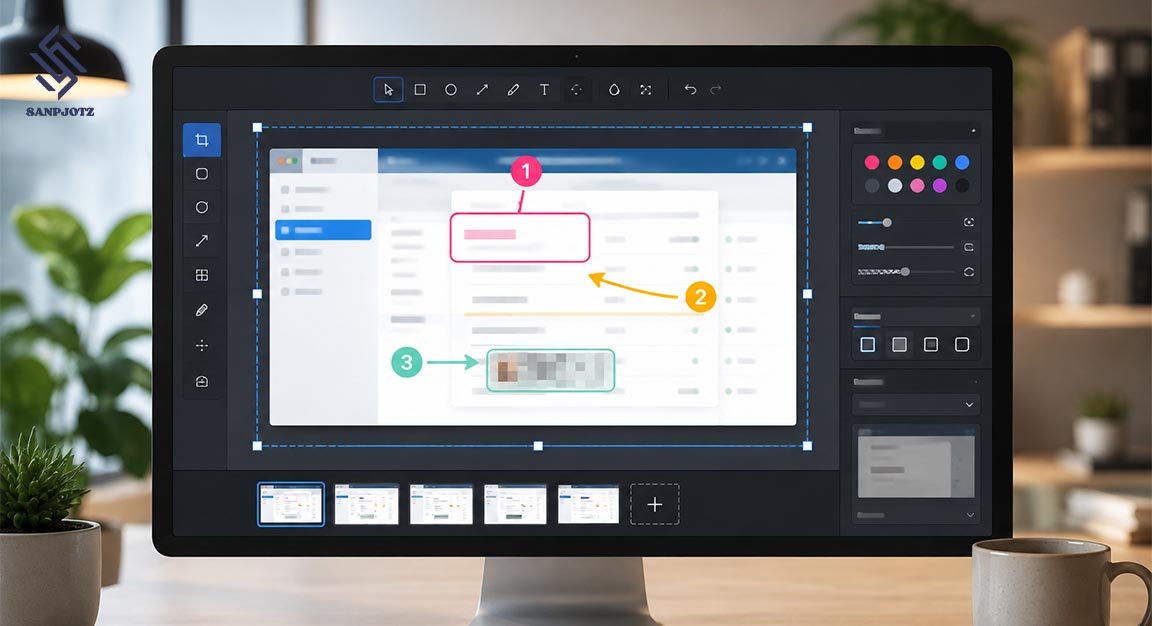
Snagit Review: Features, Tools and Benefits
Snagit is a screen capture and recording program from TechSmith. It is made for people who need to explain ideas with screenshots, short videos, and visual guides. The software can capture a full screen, one window, a selected area, or a long scrolling page. It also includes editing tools, OCR, privacy features, templates, and sharing options. This makes it useful for office work, teaching, support, training, and content creation.
What Is It and What Is It Used For?
The program is more than a basic screenshot tool. It helps users capture information and make that information easier to understand. You can add arrows, callouts, shapes, text, numbers, and highlights to an image.
TechSmith has also connected Snagit more closely with Camtasia, its advanced video editing software. This gives users a simple path from quick capture to detailed video editing. It is useful for teachers, trainers, technical writers, support teams, marketers, developers, and remote workers who often need clear visual communication.
Screen Capture and Scrolling Capture Features
The main capture tools are flexible. Users can capture the whole desktop, one application window, or only a selected area. This gives better control than many free screenshot tools. A user can focus only on the important content and avoid showing private or unnecessary parts of the screen.
One of the strongest tools is Scrolling Capture. It can save content that continues below or beside the visible screen, such as a long web page, spreadsheet, online report, or chat. Instead of taking many separate pictures, the user can create one long image.
Screen Recording, Webcam, Audio, and GIF Creation
Snagit can also record the computer screen. Users can make short tutorials, software demonstrations, feedback videos, and training clips. A recording may include system audio, microphone sound, cursor activity, and webcam video. Picture-in-picture recording can show the presenter while the main screen remains visible.
The program can also turn a short recording into a GIF. This is helpful for showing a small action, such as opening a menu or clicking a button. For advanced video editing, Camtasia or another full editor is a better choice.
Editor Tools for Screenshots and Visual Guides
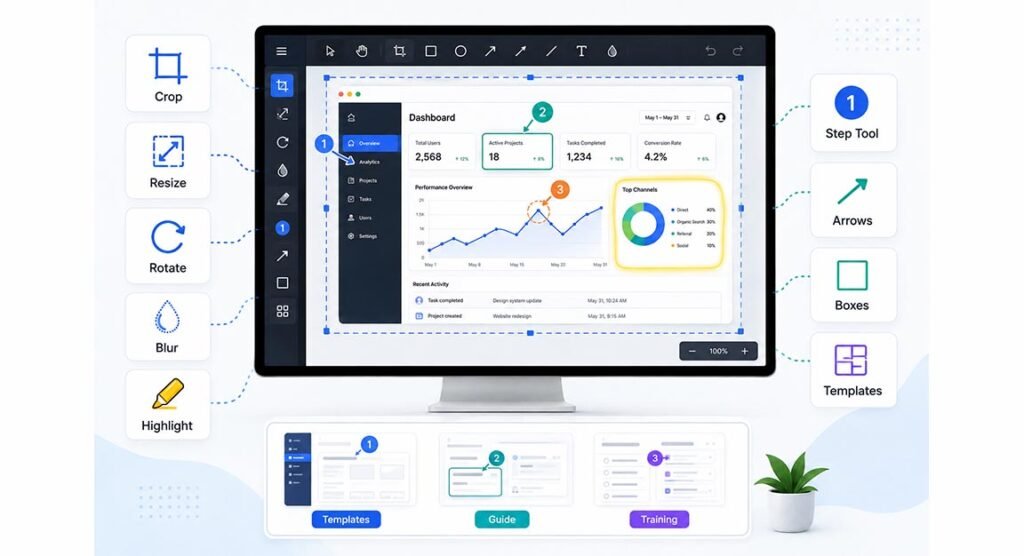
After a capture, the image opens in the editor. Users can crop, resize, rotate, blur, highlight, and add visual elements. The Step Tool can place numbered markers on an image, while arrows and boxes can point to important areas. These tools help turn a normal screenshot into a clear instruction.
Themes and templates are also useful for regular business work. A company can use similar fonts, shapes, and visual styles across many guides. Templates help arrange screenshots into clean layouts for tutorials, onboarding material, procedures, and training pages.
How OCR, Smart Redact, and Smart Move Work
The software includes OCR, or optical character recognition. OCR can identify text inside an image. Users can then copy or work with that text instead of typing it again. This is useful when a screenshot contains an address, product code, error message, or other text that is not available in a normal document.
It also includes Smart Redact and Smart Move. Smart Redact can help find private information, such as email addresses, phone numbers, faces, IP addresses, and other sensitive details. Smart Move can identify some parts of a screenshot and allow them to be moved.
Step Capture for Tutorials and Process Documentation
Step Capture is designed for people who create instructions. Instead of taking a new screenshot after every click, the feature can record screenshots while the user completes a process. The captured steps are then placed in order, which can make it much faster to build a visual guide.
This is helpful for software training, employee onboarding, standard operating procedures, customer support, and product documentation. Users can remove unwanted steps, add notes, or change the order.
Sharing, Library, Templates, and Camtasia Integration
The built-in library helps organize screenshots and recordings. Users can search, sort, filter, and tag saved content.
Snagit can also share content through supported applications and TechSmith Screencast. Its closer connection with Camtasia gives users another option: a quick recording can be opened in Camtasia for more detailed editing.
Pricing, Free Trial, and System Requirements
TechSmith offers the software as a paid product, with plans for individuals and teams. A free trial is also available, so new users can test the main workflow before paying. Prices can change by region, billing period, and promotion, so buyers should check the official TechSmith store for current details.
Current versions support modern 64-bit Windows 10 and Windows 11 systems as well as recent macOS versions. Users with older computers should check the official system requirements before installation.
Main Benefits and Limitations
The biggest benefit is having capture, editing, recording, organizing, and sharing in one place. Features such as Scrolling Capture, OCR, Step Capture, Smart Redact, templates, and screen recording can reduce the time needed to create clear instructions.
There are also limits. A person who only takes simple screenshots may not need a paid program. Some features can differ between Windows and Mac, and advanced video projects still need a stronger editor.
Is It Worth Using for Work and Content Creation?
For regular professional use, Snagit offers a strong mix of speed and practical tools. It is especially useful when you need to explain software, document a process, give visual feedback, or create short training content. Its value comes from turning a simple capture into something clear and useful.
For casual users, free built-in tools may be enough. For teams, trainers, creators, and support workers, the time-saving tools can make the paid software more useful. The best way to decide is to test the trial and compare the workflow with the screenshot tools already on your computer.
FAQs
Is the software free to use?
No. It is a paid TechSmith product, but a free trial is available for users who want to test it before buying.
Can it record videos?
Yes. It can record the screen, microphone, system audio, cursor activity, and webcam for short tutorials and demonstrations.
Can it capture a full web page?
Yes. The Scrolling Capture feature can save long pages and other content that extends beyond the visible screen.
Does it work on Windows and Mac?
Yes. TechSmith provides versions for supported Windows and macOS systems, although some features may differ by platform.
Is it good for business use?
Yes. It is useful for training, support, documentation, onboarding, visual feedback, and other work that needs clear screenshots or short recordings.