
Laptop Overheating Issues: A Complete Troubleshooting Guide
A laptop is a powerful device built for work, entertainment, and creativity, but heat problems can affect its speed and lifespan. Laptop Overheating happens when internal components produce more heat than the cooling system can remove. This issue is common among gamers, students, and professionals who use demanding software. Understanding the causes, warning signs, and solutions can help users protect their devices and maintain smooth performance.
What Causes Laptop Overheating and Why Does It Happen?
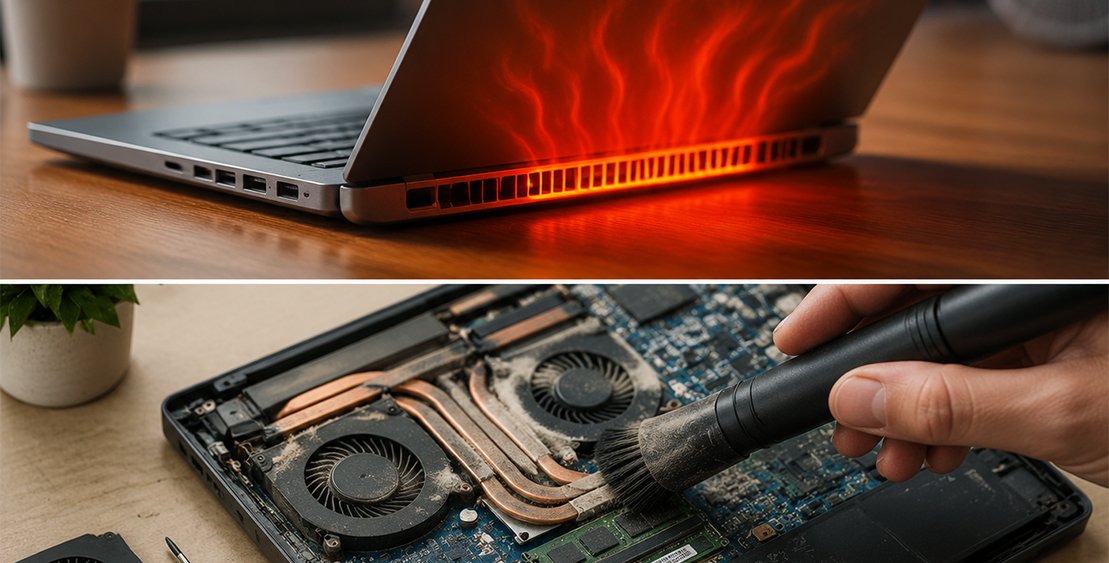
Several factors can lead to excessive heat inside a laptop. The most common reasons include dust buildup, blocked air vents, damaged cooling fans, outdated thermal paste, and heavy software usage. When airflow becomes restricted, hot air stays trapped inside, causing internal temperatures to rise.
Modern laptops use CPU processors, graphics cards (GPU), heat pipes, and fans to control temperature. When these parts work under heavy pressure, they generate more heat. If the cooling system cannot handle the workload, the device may slow down or become unstable.
Another major reason is using a laptop on soft surfaces such as beds, blankets, or cushions. These surfaces block ventilation areas and prevent fresh air from entering the system. Placing the device on a flat desk or laptop stand allows better airflow and improves cooling.
How to Identify the Signs of an Overheating Laptop
Recognizing early warning signs can prevent serious damage. A hot laptop body, loud fan sounds, sudden performance drops, and unexpected shutdowns are common indicators that the system is struggling with temperature control.
One important sign is thermal throttling, a safety feature used by modern processors. When temperatures become too high, the processor automatically reduces its speed to protect hardware. This causes slow applications, delayed responses, and poor performance during demanding tasks.
Users may also notice battery problems. Excessive heat can reduce battery health, shorten battery life, and increase the risk of battery damage. Regularly checking these signs helps prevent expensive repairs.
How to Check Laptop Temperature and Monitor Heat Levels
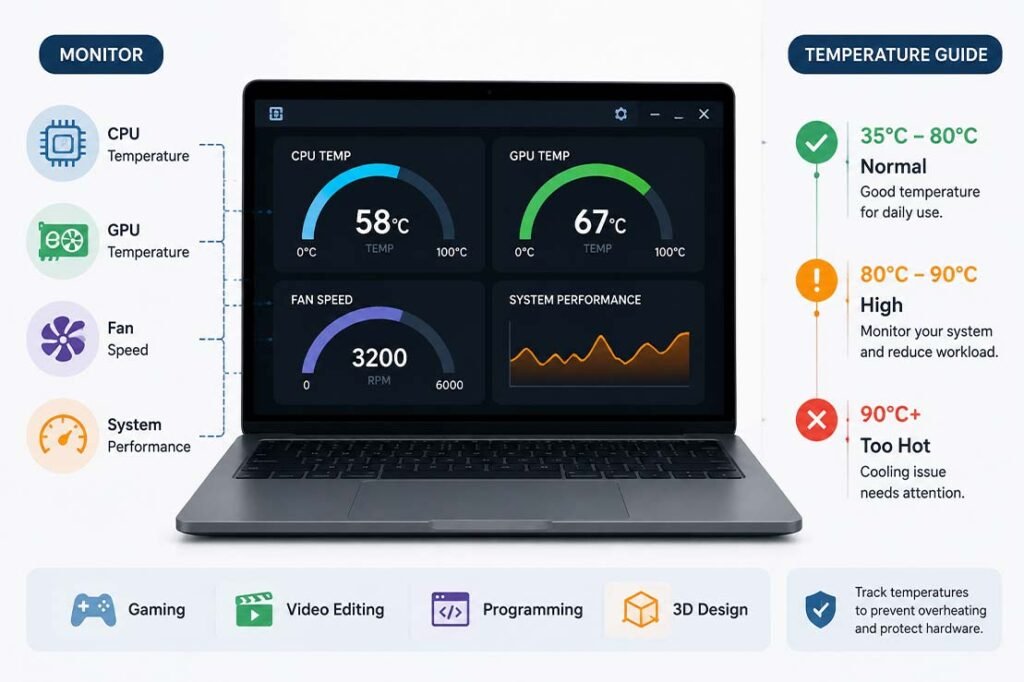
Monitoring temperature is an effective way to understand your laptop’s condition. Several hardware monitoring tools can display CPU temperature, GPU temperature, fan speed, and overall system performance.
During normal use, many laptops operate between 35°C and 80°C, depending on the workload and hardware design. Temperatures above 90°C for long periods may indicate a cooling problem that needs attention.
Temperature checks are especially useful for gamers and professionals who use video editing, programming, or 3D design applications. Tracking heat levels allows users to identify problems before they cause hardware failure.
How to Fix Laptop Overheating Quickly and Safely
Many users search for how to fix laptop overheating because they experience slow performance or sudden shutdowns. The first step is improving airflow. Move the laptop to a hard surface, keep vents clear, and avoid covering the bottom panel.
Cleaning the air vents is another simple solution. Dust blocks cooling channels and reduces fan efficiency. Using compressed air can remove external dust, while internal cleaning may require professional help.
Reducing unnecessary workload can also lower temperatures. Close unused applications, remove unnecessary startup programs, and check Task Manager for programs using excessive CPU resources.
For older laptops, replacing thermal paste can significantly improve heat transfer between the processor and cooling system. Thermal paste loses effectiveness over time, causing heat to remain inside the device.
How Dust, Blocked Vents, and Fan Problems Increase Laptop Heat
Dust is one of the biggest enemies of laptop cooling systems. Over months or years, dust particles collect around fans and heat sinks. This creates a barrier that prevents hot air from leaving the laptop.
A damaged cooling fan can create similar problems. If the fan makes unusual noises, stops spinning, or runs constantly, it may need cleaning or replacement. A healthy fan is essential because it removes heat from internal components.
Regular maintenance is the best way to avoid these problems. Cleaning vents every few months, especially in dusty environments, can keep the cooling system working properly.
How to Reduce Laptop Overheating During Gaming and Heavy Tasks
Gaming laptops often produce more heat because they use powerful CPUs and GPUs that require more energy. High-quality games, video rendering, and other demanding tasks increase processing activity and create additional heat.
To reduce heat during heavy use, lower graphics settings, close background applications, and use a cooling pad. A cooling pad improves airflow underneath the laptop and helps maintain better temperatures.
Keeping drivers updated is also helpful. Updated graphics drivers and system software can improve performance and power management, reducing unnecessary hardware stress.
How to Prevent Laptop Overheating With Proper Maintenance
Prevention is always better than repair. Good laptop habits can extend device life and maintain stable performance. Keep your laptop away from direct sunlight, hot rooms, and poorly ventilated spaces.
Battery care is also important. High temperatures damage battery cells over time. Avoid exposing the device to extreme heat and replace a swollen battery immediately.
Regular software maintenance matters as well. Remove unused programs, scan for malware, and update the operating system. Some background processes can increase CPU activity and create extra heat.
When Laptop Overheating Requires Professional Repair
Sometimes basic cleaning and usage changes are not enough. Professional repair may be necessary when the laptop continues overheating after troubleshooting.
Common repair situations include broken fans, damaged cooling systems, motherboard problems, and severe battery issues. A technician can inspect internal components and identify the exact cause.
Ignoring serious heat problems can lead to permanent damage. High temperatures may affect the processor, graphics card, storage drive, and other important hardware parts.
FAQs
Why does my laptop become hot quickly?
A laptop may become hot because of blocked vents, dust buildup, heavy applications, poor airflow, or cooling system problems.
How can I fix laptop overheating at home?
You can improve airflow, clean vents, close unnecessary programs, update software, and use a cooling pad to reduce heat.
Is Laptop Overheating dangerous for my device?
Yes. Continuous high temperatures can reduce hardware lifespan, damage components, and cause unexpected shutdowns.
Can dust cause laptop performance problems?
Yes. Dust blocks airflow and forces cooling fans to work harder, which can reduce performance.
How often should I clean my laptop cooling system?
Cleaning every few months is recommended, especially if the laptop is used in dusty areas