
How to Change Apple Maps Voice Step by Step
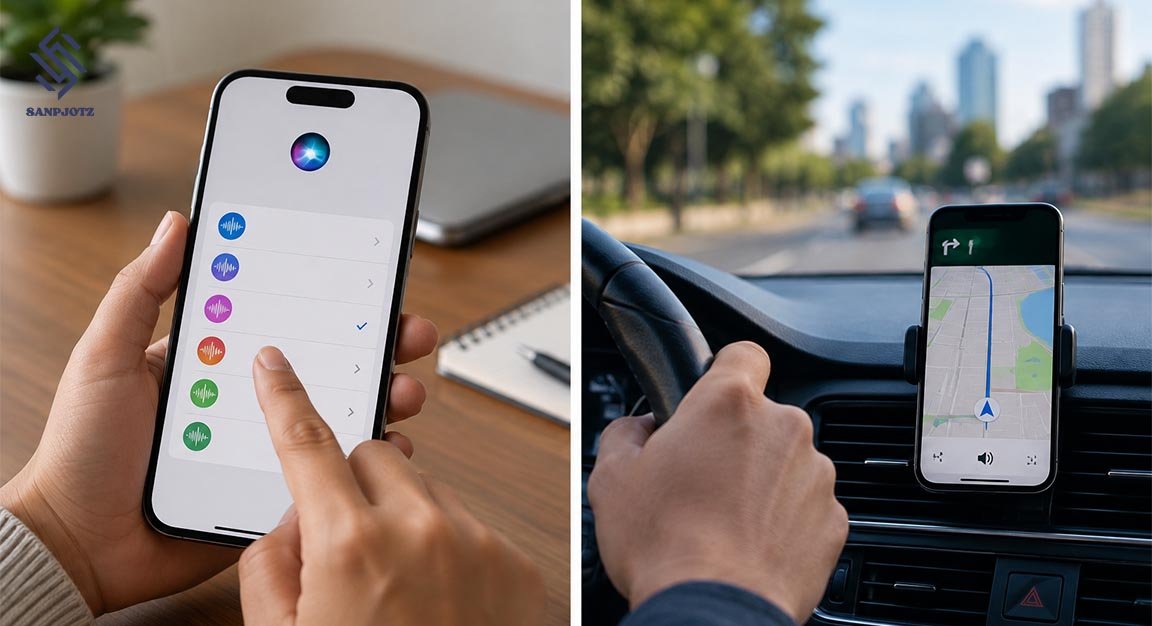
Apple Maps can speak turn-by-turn directions while you drive, walk, or cycle. If the voice is hard to understand, too quiet, or in the wrong language, you can change several settings on your iPhone. The key point is that Apple Maps uses the voice and language selected for Siri. This guide explains How to Change Apple Maps Voice, adjust its volume, use it with CarPlay, and fix common problems in simple steps.
How Apple Maps Voice Works on iPhone
Apple Maps does not have a separate list of navigation voices. Spoken directions use your selected Siri voice and language. The main voice change is made in Siri settings, while Maps has separate controls for volume, muting, and how directions work with other audio.
When a route begins from My Location, you can tap Go and hear spoken directions. If you choose a different starting point, Maps may show Steps instead of Go. In that type of route preview, directions are not spoken.
How to Change Apple Maps Voice Step by Step
To learn How to Change Apple Maps Voice, follow these stepsOpen Settings on your iPhone.
- Tap Siri. On some versions, you may see Apple Intelligence & Siri.
- Tap Voice or Siri Voice.
- Check the available Variations and Voices.
- Tap a voice to hear a preview.
- Select the voice you want.
- Open Apple Maps and choose a destination.
- Tap Go and wait for the next spoken direction.
Apple confirms that the selected Siri voice is also used for Maps navigation. If the old voice continues, close Maps and begin a new route. The exact name of the Siri menu can be slightly different depending on your software version.
How to Choose a Different Siri Voice or Accent
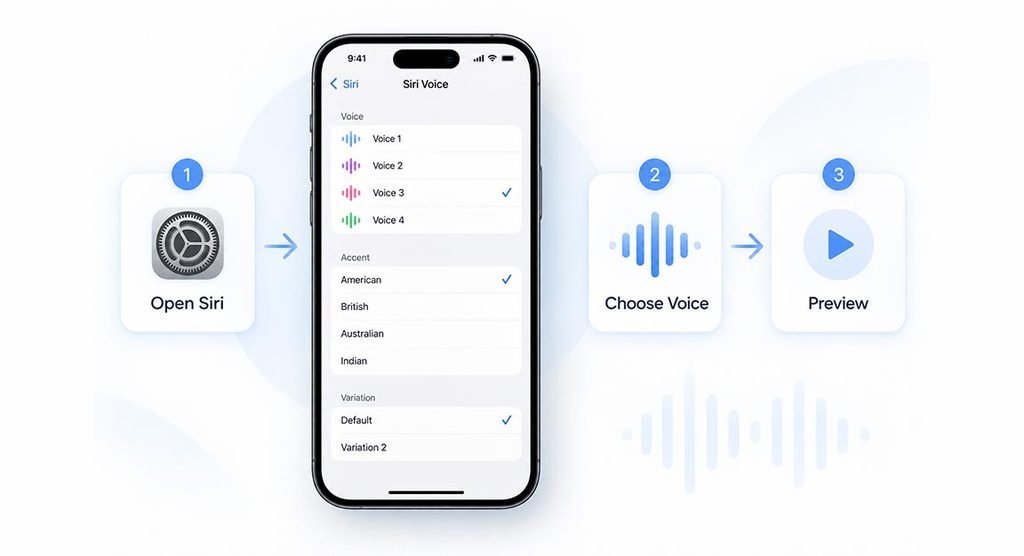
The voices you see can depend on your language, region, device, and iOS version. Open Settings > Siri > Voice. You may see options under Variations and Voices. Tap an option to hear how it sounds before selecting it.
You do not need to change your full language just to get a different sound. If your current language offers several choices, try another voice or variation first. This is useful when you like your current language but want a voice that sounds clearer during driving or walking.
How to Change Apple Maps Navigation Language
To change the language used for spoken directions, open Settings > Siri > Language and select the language you want. Apple states that the selected language is used for Siri, Maps, and turn-by-turn directions.
If you only want a different accent or speaking style, use the Voice setting instead. Changing the full Siri language can also change the language Siri expects when you speak to it. This can affect voice searches for places, contacts, and navigation commands.
How to Adjust Apple Maps Voice Volume
When people search for Apple Maps voice settings, they sometimes actually need to change the volume. Open Settings > Apps > Maps > Spoken Directions. Under Voice Volume, choose a level that is comfortable for you. You can also start a route and use the audio control on the map to manage spoken directions.
Another useful setting is Directions Pause Spoken Audio. When it is turned on, spoken media such as podcasts and audiobooks can pause when Maps gives a direction. This can make important turns much easier to hear.
How to Mute or Unmute Spoken Directions
If you want to see the route without hearing every turn, start navigation and tap the audio control. Choose the mute option. On supported versions and in CarPlay, you can also choose an option that gives only important alerts and hazards instead of full spoken navigation.
To hear directions again, tap the same audio control and turn normal voice guidance back on. Muting Maps does not change your selected Siri voice. It only controls whether navigation instructions are spoken during the route.
How Apple Maps Voice Works With CarPlay and Bluetooth
With Apple CarPlay, Maps can speak turn-by-turn directions through your vehicle speakers. CarPlay also lets you mute normal directions or hear only alerts and hazards. The navigation voice still follows the Siri voice selected on your iPhone.
For supported car systems, open Settings > Apps > Maps > Spoken Directions and look for Directions on Radio. This setting can send navigation instructions through the car speakers.
Why Apple Maps Voice Is Not Working
If Maps shows a route but stays silent, first check the audio control and make sure directions are not muted. Then open Settings > Apps > Maps > Spoken Directions and check Voice Volume. Also make sure sound is not being sent to headphones, a Bluetooth speaker, or a car system you are not using.
Apple says spoken turn-by-turn directions require an internet connection and Precise Location, and they are not available in every country or region. Also make sure you started navigation from My Location and tapped Go. A route that only shows Steps will not speak directions.
How to Fix Apple Maps Voice That Will Not Change
If the old voice remains after you select a new one, return to Settings > Siri > Voice and confirm your choice. Then close Maps and start a new route. You can also restart the iPhone if needed.
For users learning How to Change Apple Maps Voice after an iOS update, menu names can look slightly different. The simple rule is to use Siri settings for voice and language and Maps > Spoken Directions for volume and audio behavior. This makes troubleshooting much easier.
Best Apple Maps Voice Settings for Clear Navigation
For daily driving, walking, or cycling, choose a Siri voice that you can understand quickly. Set the Maps voice volume high enough for your surroundings. Turn on Directions Pause Spoken Audio if you often listen to podcasts or audiobooks.
A simple setup works best: use Siri settings to control the voice and language, and use Maps settings to control volume and audio. Once you understand this difference, How to Change Apple Maps Voice becomes a quick task instead of a confusing search through many iPhone menus.
FAQs
Can I change only the Apple Maps voice?
Apple Maps uses the Siri voice for spoken directions. Changing the Siri voice changes the navigation voice as well.
Where is the Apple Maps voice setting?
Go to Settings > Siri > Voice for the voice. Use Settings > Apps > Maps > Spoken Directions for volume and audio controls.
Why is Apple Maps not talking?
Make sure directions are not muted, the voice volume is high enough, Precise Location is enabled, and you started navigation by tapping Go.
Can I change the language of Apple Maps directions?
Yes. Open Settings > Siri > Language. The selected Siri language is also used for Maps and turn-by-turn directions.
Does Apple Maps voice work with CarPlay?
Yes. CarPlay can play Apple Maps directions through your car speakers. You can also mute normal directions or use alerts-only mode.