How to Hide Apps on iPhone for Privacy
Keeping your personal information safe is more important than ever, especially when your iPhone contains private messages, banking details, photos, and personal accounts. Learning How to Hide Apps on iPhone can help you protect sensitive apps from unwanted attention while keeping your device organized. Whether you want to hide apps from family members, friends, or anyone who uses your phone temporarily, iPhone provides several built-in privacy options. These methods allow you to hide apps without deleting them, lock access, and control what appears on your screen.
Why Hide Apps on iPhone for Better Privacy
Many iPhone users hide apps because they want more control over their personal data. Apps like banking, messaging, social media, and private storage applications may contain information that should not be visible to everyone. Hiding these apps adds an extra privacy layer without removing important files or settings.
Apple has introduced stronger privacy features with newer versions of iOS, allowing users to hide apps completely and protect them with Face ID, Touch ID, or a passcode. These options are useful for anyone who shares their phone occasionally or wants a cleaner Home Screen.
How to Hide Apps on iPhone Without Deleting Them
The easiest way to hide an app is by removing it from the Home Screen while keeping it installed on your device. This method is useful when you want to reduce screen clutter but still access the app whenever needed.
To remove an app from the Home Screen, press and hold the app icon, select Remove App, and then choose Remove from Home Screen. The app will disappear from your Home Screen but remain available in the App Library.
You can find the hidden app by swiping left until you reach the App Library. Use the bar or browse through categories to open the application. This method does not delete app data, accounts, or saved information.
How to Hide Apps on iPhone Using the Hidden Apps Feature
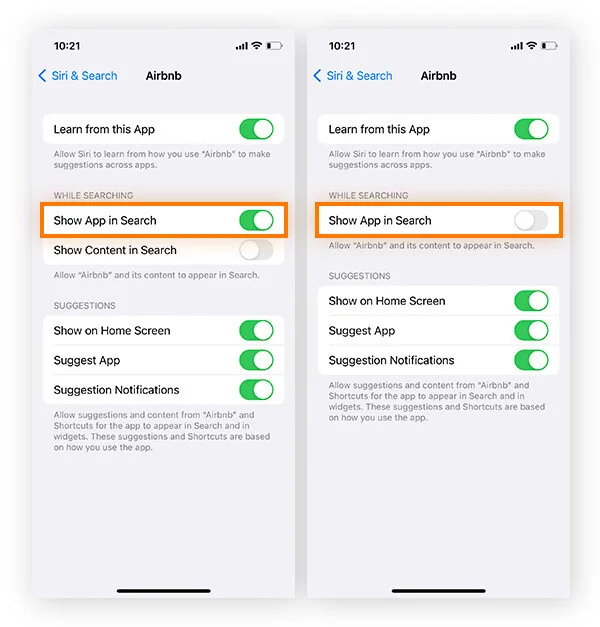
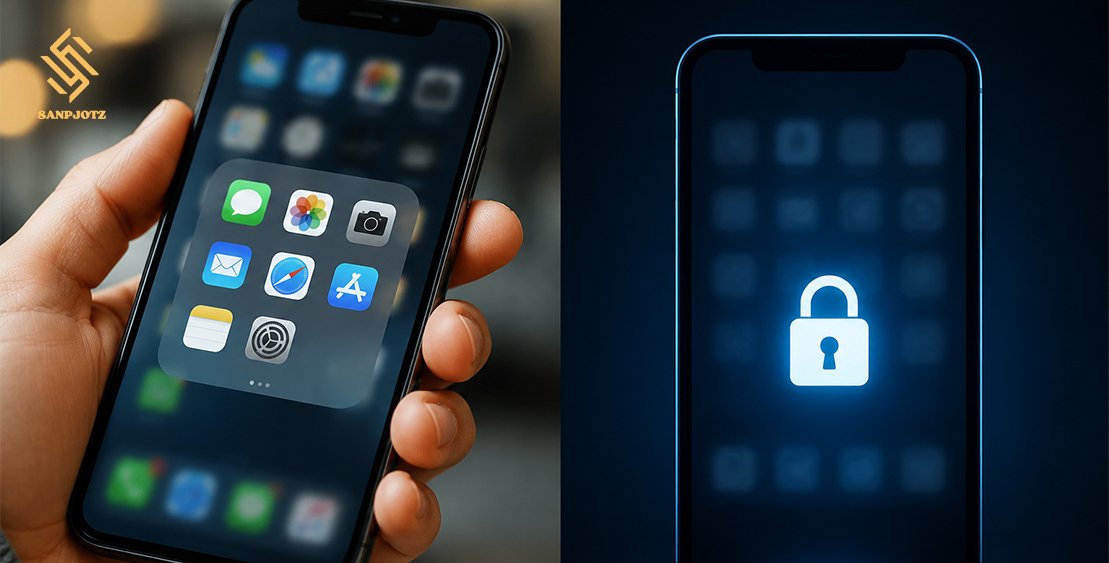
For stronger privacy, newer iPhone models running iOS 18 or later offer a dedicated hidden apps feature. This option moves selected apps into a private Hidden folder that requires authentication before opening.
To use this feature, touch and hold the app icon, tap Require Face ID or Require Touch ID, and select Hide and Require Face ID. The app will then move away from normal viewing areas and become accessible only through authentication.
This feature is especially helpful for apps containing sensitive information, such as financial services, private messaging, or personal documents. It provides better protection compared with simply removing an app from the Home Screen.
How to Remove Apps From the iPhone Home Screen
Removing apps from the Home Screen is a simple privacy solution that works on most iPhone versions. It is ideal for users who want a cleaner layout. How to Hide Apps on iPhone without making major changes to their settings.
The app will no longer appear among your main icons. However, remember that this method does not completely hide the app because it can still be found through the App Library.
How to Use Screen Time to Hide or Restrict Apps
The Screen Time feature on iPhone provides another way to control app visibility. Although it is mainly designed for usage management and parental controls, it can also help restrict access to certain apps.
To use Screen Time, go to Settings > Screen Time > Content & Privacy Restrictions. After enabling restrictions, you can manage allowed apps and features.
This method is helpful for parents who want to control children’s access or for users who want to temporarily disable specific applications. It can hide built-in Apple apps and limit certain functions without deleting anything.
How to Lock Sensitive Apps on iPhone With Face ID
Some apps include their own security options that allow users to lock access with Face ID or a passcode. Banking apps, password managers, and private storage apps often provide this feature.
Using biometric protection ensures that even if someone finds the app, they cannot easily open it. For maximum privacy, combine app locking with iPhone’s general security settings.
You should also use a strong device passcode because it protects your entire iPhone, including hidden apps and personal information stored on the device.
How to Find and Unhide Hidden Apps on iPhone
If you hide an app and later want to restore it, you can easily bring it back. Apps removed from the Home Screen can be restored through the App Library.
Press and hold the app icon inside the App Library and select Add to Home Screen. For apps hidden using the iOS hidden app feature, open the Hidden folder, verify your identity with Face ID or Touch ID, and choose the app you want to access.
Unhiding an app does not remove your saved information. Your account details, settings, and app data remain unchanged.
Best Privacy Settings to Protect Apps and Personal Data
Hiding apps is only one part of maintaining iPhone privacy. You should also review your overall security settings regularly.
Check app permissions by visiting Settings > Privacy & Security. Review which apps can access your location, camera, microphone, contacts, and photos.
You can also improve privacy by disabling lock screen notification previews, updating your iPhone regularly, and avoiding weak passwords. Combining these settings with hidden apps provides stronger protection for your personal information.
FAQs
Can I hide apps on iPhone without deleting them?
Yes. You can remove apps from the Home Screen or use the hidden apps feature without deleting them.
Can hidden apps still receive notifications?
Yes. Hidden apps may still send notifications unless you change notification settings from Settings > Notifications.
Can someone find my hidden apps on iPhone?
Apps removed from the Home Screen can be found in the App Library. Fully hidden apps require Face ID, Touch ID, or a passcode.
Does hiding an app free up iPhone storage?
No. Hiding an app only removes visibility. The app and its data still use storage space.
Which iOS version supports hiding apps completely?
The complete hidden apps feature is available on iPhones running iOS 18 or later.