
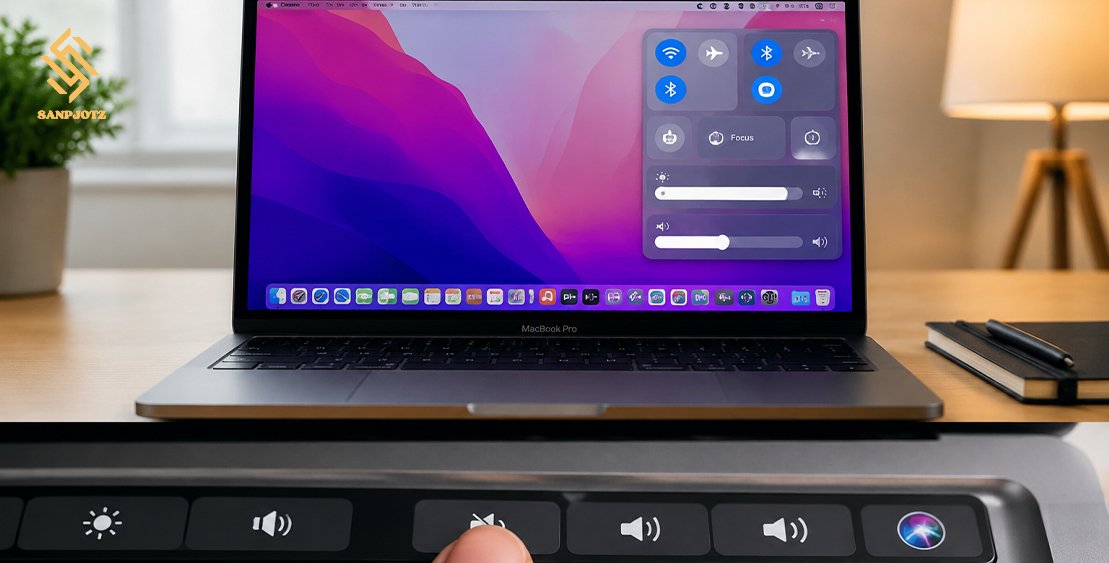
How to Turn Off MacBook Ringer in Simple Steps
How to Turn Off MacBook Ringer, you may notice that your MacBook does not have a single ringer button like an iPhone. The sound usually comes from different features such as FaceTime calls, iPhone call sharing, notifications, and communication apps. The good thing is that you can easily control these sounds by changing a few settings in macOS. This guide explains the complete process in simple steps so you can enjoy a quieter MacBook without turning off all audio.
Understand Why Your MacBook Is Ringing
A MacBook can make ringing sounds for several reasons. Many users experience this when their iPhone receives a call because Apple allows calls to appear on connected devices through the Continuity feature. If your MacBook and iPhone use the same Apple ID, incoming calls may create a ringing alert on your computer.
The sound may also come from FaceTime, messaging apps, calendar reminders, or third-party applications. Before changing settings, it is helpful to understand the source of the sound. This allows you to remove only unwanted alerts while keeping useful sounds such as music, videos, and online meetings.
Turn Off MacBook Ringer Using Sound Settings
The easiest way to silence a MacBook is by using the built-in sound controls. This method quickly stops all system sounds, including notifications and alerts.
To mute your MacBook, open the Control Center from the top-right corner of your screen and select the sound option. You can then lower the volume completely or use the mute key on your keyboard if your model supports it.
This option is useful when you need complete silence during a meeting, study session, or quiet environment. However, it also disables other sounds, so it may not be the best choice if you still want to listen to music or watch videos.
For users who want a more specific solution, learning How to Turn Off MacBook Ringer through individual settings is a better approach.
Disable FaceTime Ringing on MacBook
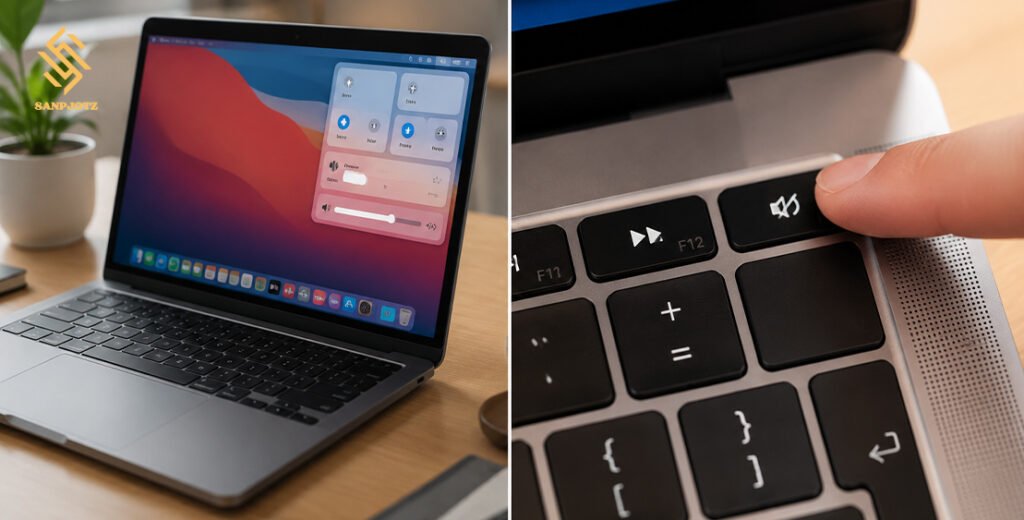
One common reason behind unwanted MacBook ringing is FaceTime. When someone calls your Apple account, your MacBook may play a ringtone even when the FaceTime app is not open.
To stop this sound, open the FaceTime app on your MacBook and go to the settings menu. From there, you can adjust call preferences and notification options. You can also control FaceTime alerts through System Settings by opening the notifications section and changing the sound permissions.
If you rarely use FaceTime on your MacBook, you can disable the account completely. This prevents incoming FaceTime calls from creating any ringing sounds on your device.
Stop iPhone Calls From Ringing on MacBook
Many MacBook users are surprised when their computer rings during an incoming phone call. This happens because your iPhone may be sharing calls with your MacBook.
To stop this feature, open Settings on your iPhone and go to the phone settings. Find the option called Calls on Other Devices and turn off your MacBook from the list.
After changing this setting, your regular phone calls will only appear on your iPhone. Your MacBook will no longer make a ringing sound whenever someone calls your mobile number.
This is one of the most effective methods for anyone looking for How to Turn Off MacBook Ringer without affecting other computer functions.
Remove Notification Sounds From MacBook Apps
Notifications are another major reason why a MacBook may seem like it has a ringer. Applications such as Messages, Mail, Calendar, Slack, Zoom, and Microsoft Teams can create alert sounds throughout the day.
You can control these sounds by opening System Settings and selecting the notifications section. Choose the application that creates unwanted sounds and adjust its alert preferences.
Instead of disabling every notification, you can choose which apps should remain silent. This gives you better control and prevents important alerts from being missed.
Use Focus Mode to Silence MacBook Alerts
Focus Mode is a helpful macOS feature that allows you to reduce interruptions without changing every sound setting manually. It is useful during work hours, online classes, presentations, or personal time.
You can activate Focus Mode from the Control Center and select options such as Do Not Disturb. When enabled, your MacBook can block unwanted calls and notifications based on your preferences.
The advantage of Focus Mode is that it is temporary and flexible. You can turn it off whenever you want to receive normal alerts again.
Turn Off Ringer Sounds From Communication Apps
Some applications have their own ringtone settings, which means they may continue making sounds even after you change MacBook settings. Apps like Zoom, WhatsApp, Discord, Skype, and Microsoft Teams often include separate notification controls.
Open the settings inside each application and look for call or notification options. Turning off these sounds will stop unwanted ringing while allowing you to continue using the apps normally.
This step is especially useful for people who use their MacBook for professional communication and receive many online calls throughout the day.
Turn Off MacBook Ringer Without Muting Other Audio
Many users do not want to disable every sound on their MacBook. They only want to stop calls and alerts while keeping entertainment and work audio active.
The best solution is to adjust specific settings instead of using the complete mute option. Disable unnecessary call alerts, manage application notifications, and control FaceTime settings.
By doing this, you can continue watching videos, listening to music, or attending online meetings while avoiding unwanted ringing sounds.
Understanding How to Turn Off MacBook Ringer is not only about muting the device. It is about managing your sound preferences according to your daily needs.
Fix MacBook Still Ringing After Turning It Off
Sometimes a MacBook may continue making ringing sounds even after you change the settings. This usually happens because another feature or application is still allowed to send alerts.
Check your connected devices, including your iPhone, Bluetooth headphones, and external speakers. Review FaceTime and notification settings again to make sure no app is creating the sound.
Restarting your MacBook can also help apply new sound settings properly. Keeping your macOS updated may prevent unexpected notification problems in the future.
FAQs
Why does my MacBook ring when my iPhone receives a call?
Your MacBook rings because the Calls on Other Devices feature allows your iPhone calls to appear on connected Apple devices.
Can I turn off MacBook ringing without muting all sounds?
Yes, you can disable specific call and notification sounds while keeping music, videos, and other audio working.
How can I stop FaceTime from ringing on MacBook?
You can change FaceTime settings or disable FaceTime notifications through System Settings.
Why is my MacBook still making notification sounds?
Another app may have its own sound settings enabled. Check communication apps and notification permissions.
Does Focus Mode stop all MacBook alerts?
Focus Mode can silence selected calls and notifications based on the settings you choose.