How to Make a Public Profile on Snapchat on Android and iPhone
If you want more people to discover your content, learning How to Make a Public Profile on Snapchat can help. A Public Profile gives you a public space where people can follow your posts without becoming your friends. You can add a profile photo, bio, location, public Stories, and other content. The setup is simple on both Android and iPhone, but your account must meet Snapchat’s current age and safety rules.
What Is a Public Profile on Snapchat?
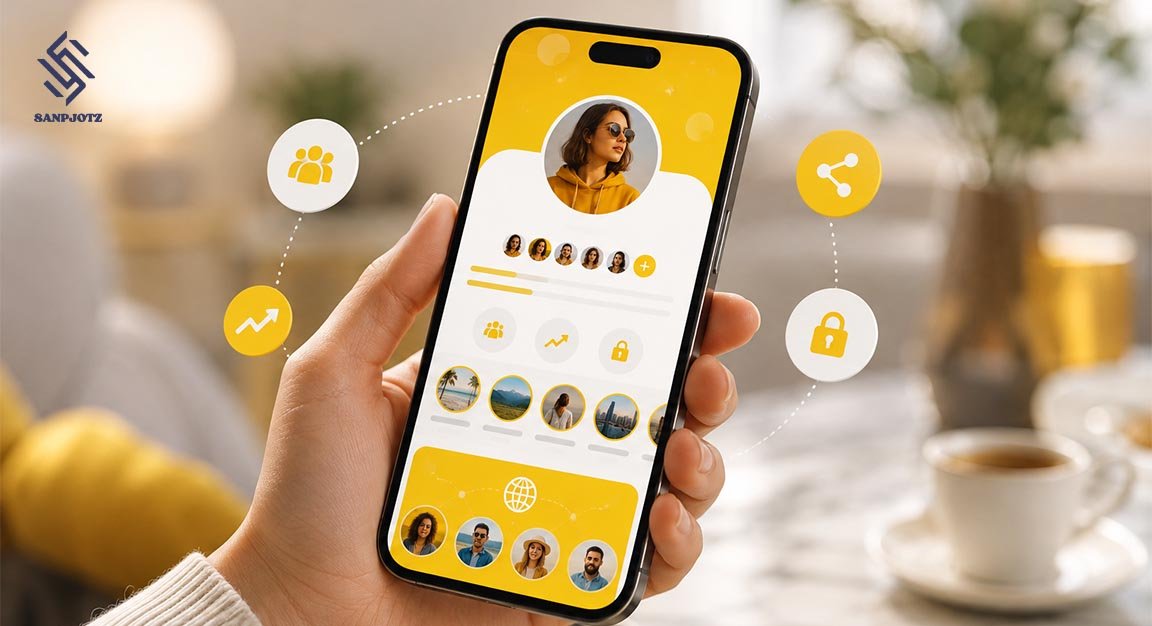
A Snapchat Public Profile is a page that other users can view even if they are not on your friends list. It can show your public photo, bio, Stories, Spotlight posts, saved content, and follower information. It is useful for creators, businesses, artists, influencers, and regular users who want to reach a larger audience.
A Public Profile is different from your private Snapchat account. Your normal account is mainly for friends and direct communication. A Public Profile is designed for public discovery. People can follow you without sending a friend request, which makes it easier to grow an audience while keeping your personal friend list separate.
Who Can Get a Snapchat Public Profile?
Before learning How to Make a Public Profile on Snapchat, check whether your account is eligible. Snapchat says users aged 16 or older generally have access to a Public Profile. However, age rules can be different in some countries because of local laws. Users under 16 normally cannot use this feature.
People aged 16 and 17 also receive extra safety protections. For example, Snapchat limits some public features and keeps stronger privacy controls for younger users. Previous Community Guidelines violations may also affect whether the Public Profile option appears on an account.
How to Make a Public Profile on Snapchat on Android
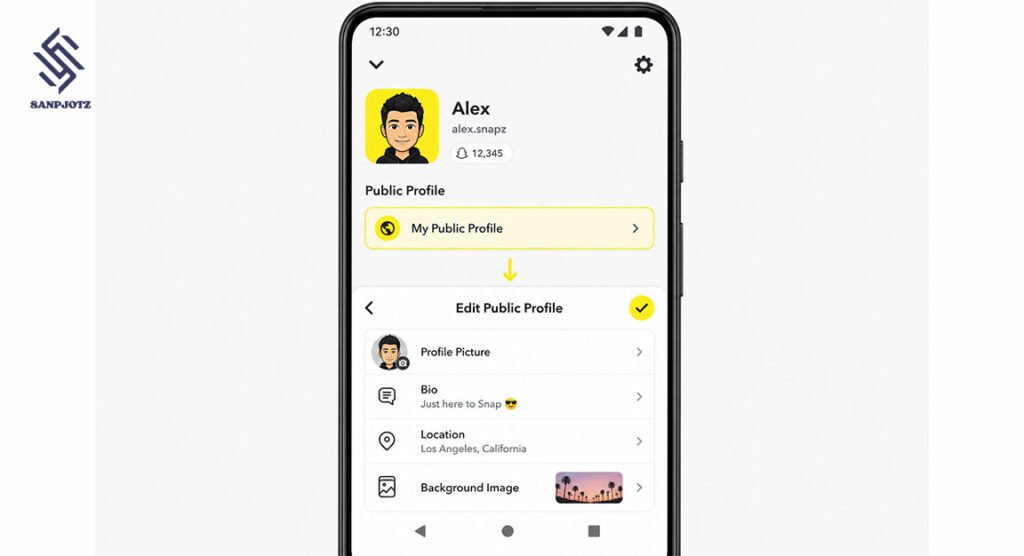
If you use an Android phone, open the latest version of Snapchat and sign in. Tap your Bitmoji or profile icon in the top-left corner. Scroll through your profile page and look for Public Profile or My Public Profile. Eligible users may already have this section available automatically.
Tap your Public Profile and select the pencil or Edit Profile icon. From here, you can add a profile picture, write a short bio, add your location, and change your background image. Snapchat may change the exact button names after app updates, but the basic process stays similar on most Android devices.
How to Make a Public Profile on Snapchat on iPhone
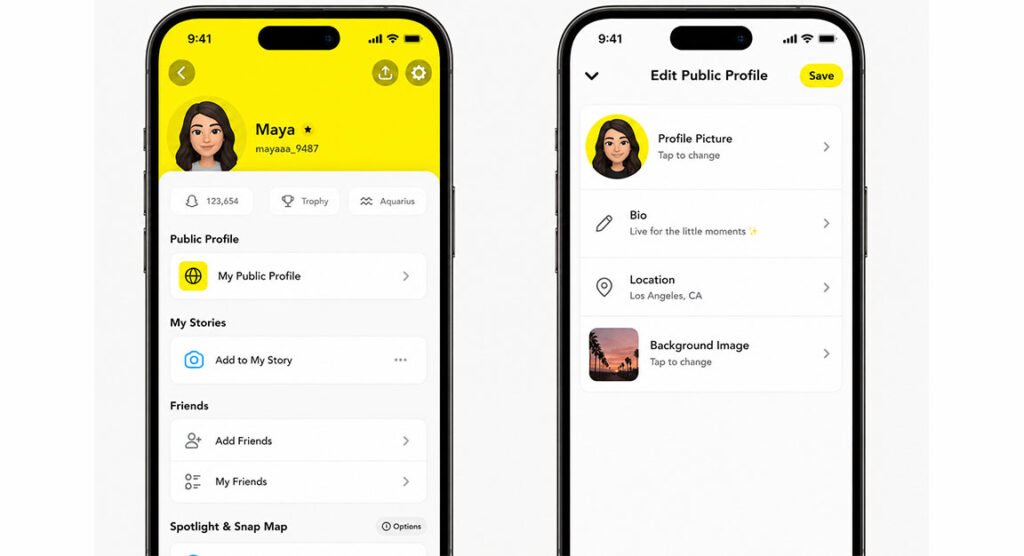
The steps for How to Make a Public Profile on Snapchat on iPhone are almost the same as Android. Open Snapchat on your iPhone and tap the profile or Bitmoji icon. Find the Public Profile section and open it. If your account is eligible, the profile should already be available for you to edit.
Tap the Edit Profile option or pencil icon. Add the public information you want visitors to see. You can upload a photo from your Camera Roll or Memories, add a short bio, include a location, and update the profile background. Make sure your Snapchat app is updated through the Apple App Store if you cannot find these options.
How to Customize Your Snapchat Public Profile
After setting up your profile, add clear information that tells visitors who you are. A good profile photo should be easy to recognize. Your bio should be short and simple. You can explain what type of content you post, such as travel videos, gaming clips, fashion content, daily life, or business updates.
You can also add saved Stories to your profile. Open your Public Profile and choose the option to add a Story. Select photos or videos, give the Story a title, choose a cover image, and publish it. This helps new visitors see your best content even after a normal Story has expired.
How Followers, Public Stories, and Spotlight Work
One important reason people want to know How to Make a Public Profile on Snapchat is the follower system. On Snapchat, a follower is not always a friend. Someone can follow your public content without being added to your private friends list. This makes public sharing safer and easier to manage.
You can post content to My Story · Public when you want followers to see it. You can also publish videos to Spotlight, where content may reach people who do not already follow you. Snapchat may also show public content through Discover or other recommendation areas, depending on your account and content.
How to Change Privacy Settings on a Public Profile
Having a Public Profile does not mean everything on your Snapchat account becomes public. You can still control who contacts you, who sees your private Story, who can view your location, and who can find you through certain Snapchat features.
Open Settings and review the options under privacy controls. You can choose who can contact you, see your location, view Stories, or find your account. If you are worried about privacy, keep Snap Map location sharing limited and avoid adding sensitive personal details to your Public Profile.
Why You Cannot See the Public Profile Option
If How to Make a Public Profile on Snapchat does not work because the option is missing, first check the birthday saved on your Snapchat account. Snapchat needs correct age information to decide whether you can use public features. Users below the required age will not normally see the option.
You should also update Snapchat from the Google Play Store or Apple App Store. Close and reopen the app after updating it. In some cases, previous Community Guidelines problems may limit Public Profile access. If your account meets the age rules but the feature is still missing, check Snapchat Support for account-specific help.
How to Use Public Profile Insights and Follower Count
Snapchat gives Public Profile users tools that can help them understand their audience. You may be able to view information about followers and public content performance. These insights can show how people interact with your Stories or other public posts.
You can also decide whether your follower count is visible. Open your Public Profile, tap the pencil icon, and find the setting for Show Follower Count. Turn it on if you want visitors to see your audience size. Snapchat may provide more detailed audience information after your profile reaches certain follower levels.
How to Clear or Remove Your Snapchat Public Profile
If you no longer want a public page, Snapchat allows you to clear your Public Profile. Open the profile, tap the three-dot menu, enter Public Profile settings, and select Clear Public Profile. Read the warning carefully before confirming the change.
Clearing the profile can remove your public bio, profile photo, saved Public Stories, and other information added directly to it. However, it does not automatically delete your main Snapchat account. Spotlight and Snap Map posts may also need to be removed separately if you want them deleted.
Knowing How to Make a Public Profile on Snapchat is useful if you want to share content with more people without adding everyone as a friend. Android and iPhone users follow almost the same steps. Keep your app updated, use clear profile information, review privacy settings, and post useful public content. A well-managed Public Profile can make your Snapchat presence easier to discover and more professional.
FAQs
Can anyone make a Public Profile on Snapchat?
Most Snapchat users aged 16 or older can access a Public Profile, but local age rules and account status may affect availability.
Is a Snapchat Public Profile free?
Yes. Snapchat does not normally charge users to create or use a standard Public Profile.
Can I make a Public Profile on both Android and iPhone?
Yes. How to Make a Public Profile on Snapchat is almost the same on Android and iPhone, although some buttons may look slightly different.
Can people follow me without adding me as a friend?
Yes. People can follow your Public Profile without becoming your Snapchat friends.
Does deleting my Public Profile delete my Snapchat account?
No. Clearing a Public Profile removes its public information but does not automatically delete your main Snapchat account.